The best AI setup for UI design may not be one giant prompt box. A specialist tool can be better for color, another for visual attention, another for assets, and another for the layout itself. This list builds a practical AI-assisted UI stack instead of six versions of the same generator.
Key Takeaways
- Figma Make is the strongest pick for turning design context into functional prototypes and web experiences.
- Uizard is the strongest pick for quick editable UI concepts for designers and non-designers.
- Khroma is the strongest pick for AI-assisted color exploration and palette discovery.
- Adobe Firefly is the strongest pick for AI-assisted creative production inside an Adobe-heavy workflow.
- Attention Insight is the strongest pick for predictive visual-attention analysis before running live eye-tracking studies.
One AI Tool Does Not Need to Do Everything
Use Figma Make or Uizard to create and reshape the interface. Use Khroma to explore palette direction. Use Firefly for the image and visual assets the interface needs. Use Attention Insight to question visual hierarchy. Use Stark to catch accessibility issues before they become development debt.
The Six Jobs in This Stack
- Specialist job quality
- Time saved
- Ease of verification
- Fit with Figma/design workflow
- Cost of switching context
- Output control
Quick Comparison
| Tool | Best For | Biggest Strength | Watch Out For |
|---|---|---|---|
| Figma Make | Turning design context into functional prototypes and web experiences | The strongest reason to choose it is continuity. | It makes the most sense inside a Figma-heavy workflow. |
| Uizard | Quick editable ui concepts for designers and non-designers | It is particularly useful when the person shaping the product idea is not a full-time UI designer. | The ceiling is lower than Figma, Sketch, or a code-backed builder when you need a large design system, advanced interactions, or highly specific production handoff. |
| Khroma | Ai-assisted color exploration and palette discovery | Because it is focused, it is faster than asking a general AI assistant for endless hex-code lists with no visual context. | It does not understand your product hierarchy, accessibility requirements, or component system by itself. |
| Adobe Firefly | Ai-assisted creative production inside an adobe-heavy workflow | The practical advantage is depth after generation. | For pure UI or product design, Firefly is a supporting creative tool rather than the place where the full interface system lives. |
| Attention Insight | Predictive visual-attention analysis before running live eye-tracking studies | It is useful for catching obvious hierarchy problems: a CTA that disappears, a hero image that steals all attention, or a pricing layout whose visual weight is fighting the intended path. | A predictive heatmap is not user research and does not tell you whether people understand the content or can complete a task. |
| Stark | Accessibility checks inside design and development workflows | That timing is its biggest benefit. | It is intentionally narrow. |
1. Figma Make: Best for Turning design context into functional prototypes
Product: Figma Make
Figma Make sits unusually close to the rest of the product-design workflow. You can start from a prompt, attach an existing Figma frame or design context, iterate visually, and move toward a code-backed interactive result without abandoning the design file.
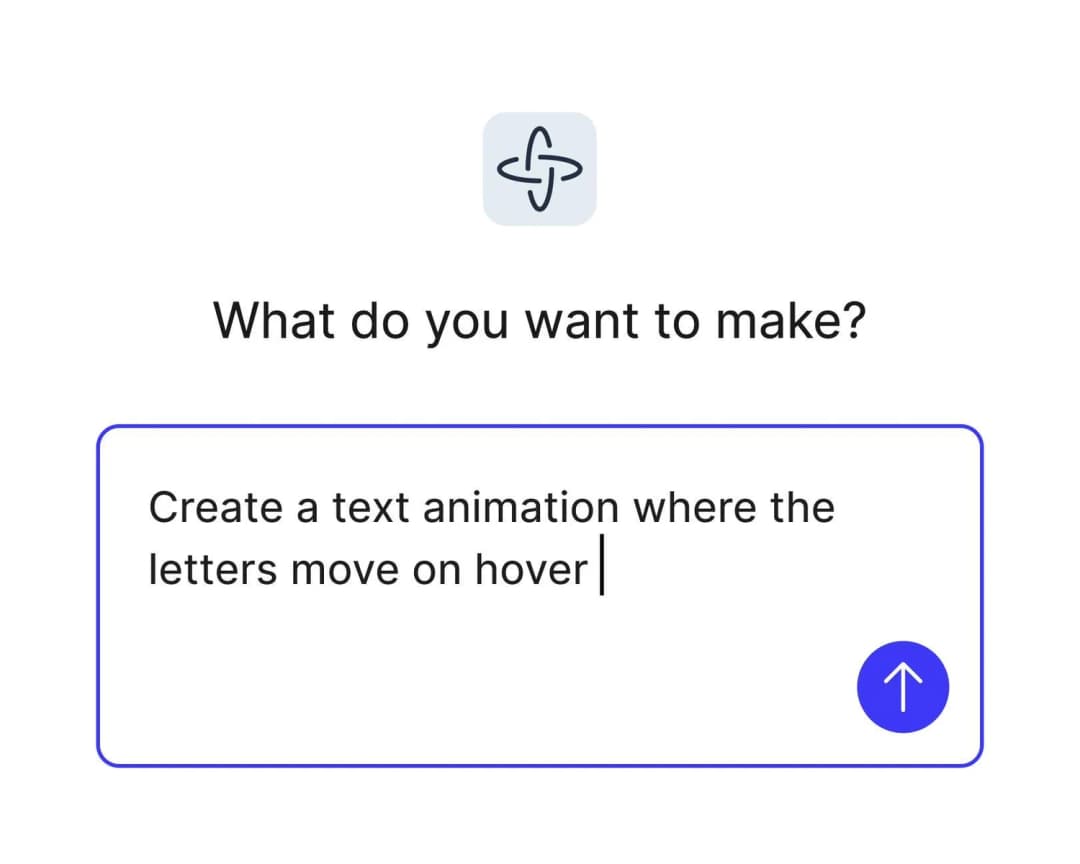
In a specialist AI stack, Figma Make does not need to replace the design tool. It only needs to be excellent at turning design context into functional prototypes and web experiences and hand the result back cleanly.
The strongest reason to choose it is continuity. Teams already using Figma can keep components, feedback, design context, and prototyping closer together instead of exporting an early idea into a completely separate AI builder.
Where it fits best
Use Figma Make when turning design context into functional prototypes and web experiences. It is particularly useful when that need is already visible in your current workflow and the team can measure whether the tool actually removes a handoff, shortens iteration, or improves the quality of the artifact.
The tradeoff
It makes the most sense inside a Figma-heavy workflow. If your team wants a standalone AI builder, a code-first IDE experience, or an open-source design stack, other options can feel less opinionated.
Current context: Figma says its 2026 State of the Designer research found 72% of designers now use generative AI, and 91% of designers who increased AI usage say it improves output quality. Source
Image placement: Use a current in-product interface image showing Figma Make doing the job described above. Filename: best-ai-tools-for-ui-design-figma-make.webp. Keep WebP under 100 KB.
2. Uizard: Best for Quick editable ui concepts for designers
Product: Uizard
Uizard is built around getting from an idea to an editable interface quickly. Autodesigner can generate multi-screen app or website mockups from plain English, and the same workspace supports themes, screenshots-to-editable-design, components, flows, and interactive previews.
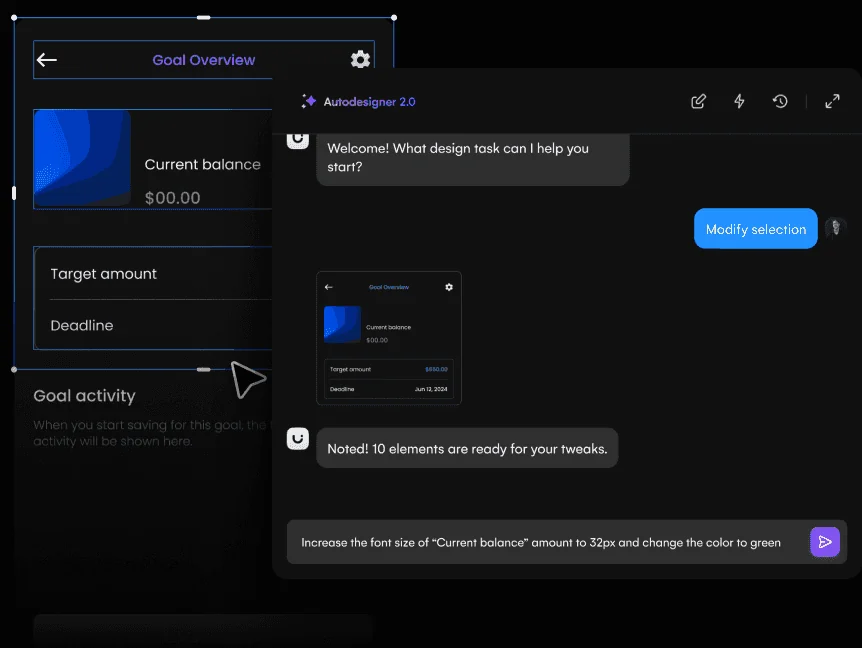
In a specialist AI stack, Uizard does not need to replace the design tool. It only needs to be excellent at quick editable UI concepts for designers and non-designers and hand the result back cleanly.
It is particularly useful when the person shaping the product idea is not a full-time UI designer. Product managers, founders, marketers, and early-stage teams can produce something concrete without learning a dense professional design environment first.
Where it fits best
Use Uizard when quick editable UI concepts for designers and non-designers. It is particularly useful when that need is already visible in your current workflow and the team can measure whether the tool actually removes a handoff, shortens iteration, or improves the quality of the artifact.
The tradeoff
The ceiling is lower than Figma, Sketch, or a code-backed builder when you need a large design system, advanced interactions, or highly specific production handoff.
Current context: Uizard describes Autodesigner as an AI system that generates multi-screen app and website mockups from plain-English prompts. Source
Image placement: Use a current product workflow image showing Uizard doing the job described above. Filename: best-ai-tools-for-ui-design-uizard.webp. Keep WebP under 100 KB.
3. Khroma: Best for Ai-assisted color exploration
Product: Khroma
Khroma is a narrow tool with a clear job: learn the colors you like and generate combinations around those preferences. For UI designers, that makes it useful during early visual exploration when the problem is finding a direction rather than managing a full design system.
In a specialist AI stack, Khroma does not need to replace the design tool. It only needs to be excellent at AI-assisted color exploration and palette discovery and hand the result back cleanly.
Because it is focused, it is faster than asking a general AI assistant for endless hex-code lists with no visual context.
Where it fits best
Use Khroma when AI-assisted color exploration and palette discovery. It is particularly useful when that need is already visible in your current workflow and the team can measure whether the tool actually removes a handoff, shortens iteration, or improves the quality of the artifact.
The tradeoff
It does not understand your product hierarchy, accessibility requirements, or component system by itself. Final palette choices still need contrast checks and real interface testing.
Current context: Khroma uses machine learning to learn a user’s color preferences and generate palette combinations. Source
Image placement: Use a current in-product interface image showing Khroma doing the job described above. Filename: best-ai-tools-for-ui-design-khroma.webp. Keep WebP under 100 KB.
4. Adobe Firefly: Best for Ai-assisted creative production inside an adobe-heavy workflow
Product: Adobe Firefly
Adobe Firefly is now much more than a text-to-image page. It combines image, video, audio, editing, partner models, and a 2026 AI Assistant that can orchestrate multi-step creative work across Adobe apps while keeping outputs editable.
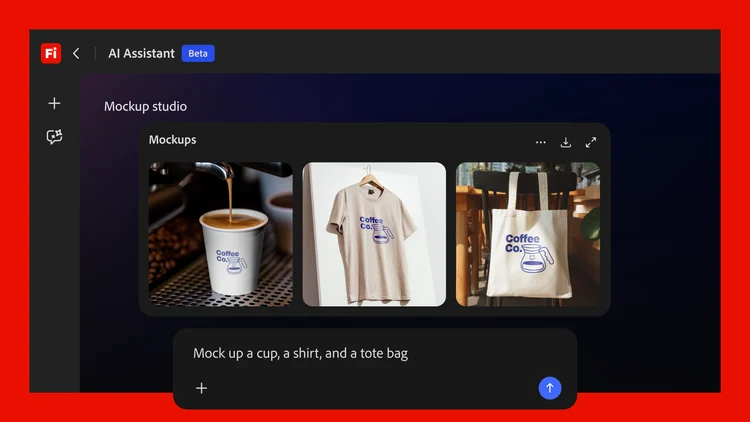
In a specialist AI stack, Adobe Firefly does not need to replace the design tool. It only needs to be excellent at AI-assisted creative production inside an Adobe-heavy workflow and hand the result back cleanly.
The practical advantage is depth after generation. A concept can continue into Photoshop, Illustrator, Premiere, Lightroom, or Express instead of ending as a flattened AI output.
Where it fits best
Use Adobe Firefly when AI-assisted creative production inside an Adobe-heavy workflow. It is particularly useful when that need is already visible in your current workflow and the team can measure whether the tool actually removes a handoff, shortens iteration, or improves the quality of the artifact.
The tradeoff
For pure UI or product design, Firefly is a supporting creative tool rather than the place where the full interface system lives. It is strongest for visual assets, campaigns, image editing, and multimodal production.
Current context: Adobe said in April 2026 that Firefly had expanded to more than 30 creative AI models across Adobe and partner providers. Source
Image placement: Use a current product workflow image showing Adobe Firefly doing the job described above. Filename: best-ai-tools-for-ui-design-adobe-firefly.webp. Keep WebP under 100 KB.
5. Attention Insight: Best for Predictive visual-attention analysis before running live eye-tracking studies
Product: Attention Insight
Attention Insight uses predictive attention models to estimate where users are likely to look on a page or interface. Designers can use heatmaps and related visual-attention signals as an early diagnostic before committing to more expensive testing.
In a specialist AI stack, Attention Insight does not need to replace the design tool. It only needs to be excellent at predictive visual-attention analysis before running live eye-tracking studies and hand the result back cleanly.
It is useful for catching obvious hierarchy problems: a CTA that disappears, a hero image that steals all attention, or a pricing layout whose visual weight is fighting the intended path.
Where it fits best
Use Attention Insight when predictive visual-attention analysis before running live eye-tracking studies. It is particularly useful when that need is already visible in your current workflow and the team can measure whether the tool actually removes a handoff, shortens iteration, or improves the quality of the artifact.
The tradeoff
A predictive heatmap is not user research and does not tell you whether people understand the content or can complete a task. Use it as a signal, not as proof.
Current context: Attention Insight positions its AI heatmaps as predictive attention analysis for websites, ads, and interface designs. Source
Image placement: Use a current in-product interface image showing Attention Insight doing the job described above. Filename: best-ai-tools-for-ui-design-attention-insight.webp. Keep WebP under 100 KB.
6. Stark: Best for Accessibility checks inside design
Product: Stark
Stark is a specialist accessibility platform that helps teams catch issues around contrast, typography, focus order, vision simulation, and related accessibility concerns while design and code are still changing.
In a specialist AI stack, Stark does not need to replace the design tool. It only needs to be excellent at accessibility checks inside design and development workflows and hand the result back cleanly.
That timing is its biggest benefit. Accessibility becomes much cheaper when it is part of the design workflow rather than a final compliance gate before launch.
Where it fits best
Use Stark when accessibility checks inside design and development workflows. It is particularly useful when that need is already visible in your current workflow and the team can measure whether the tool actually removes a handoff, shortens iteration, or improves the quality of the artifact.
The tradeoff
It is intentionally narrow. Stark complements Figma, Sketch, browsers, and engineering tools instead of replacing any of them.
Current context: Stark integrates accessibility tooling into design and development workflows rather than treating accessibility as a separate end-stage audit. Source
Image placement: Use a current product workflow image showing Stark doing the job described above. Filename: best-ai-tools-for-ui-design-stark.webp. Keep WebP under 100 KB.
Which One Should You Choose?
Choose Figma Make if your priority is turning design context into functional prototypes and web experiences. Choose Uizard if your priority is quick editable UI concepts for designers and non-designers. Choose Khroma if your priority is AI-assisted color exploration and palette discovery.
Choose Adobe Firefly if your priority is AI-assisted creative production inside an Adobe-heavy workflow. Choose Attention Insight if your priority is predictive visual-attention analysis before running live eye-tracking studies. Choose Stark if your priority is accessibility checks inside design and development workflows.
Do not choose from the feature count alone. Pick the tool that removes the next expensive handoff in your workflow. If it only gives you a faster first draft but creates more cleanup later, the speed is mostly cosmetic.
FAQs
What is the best AI tools for UI design for most teams?
For most teams, Figma Make is the safest starting point because it matches the central job of this list: turning design context into functional prototypes and web experiences. The better answer can change quickly when your team has a strong platform, code, or workflow constraint.
Are free AI tools for UI design good enough?
Free plans are usually enough to test the workflow and judge first-result quality. The limits show up later in collaboration, AI credits, private projects, exports, version history, team controls, or production use. Test your real workflow before paying for a year.
Should AI replace the designer in this workflow?
No. AI is most useful for generating options, assembling first passes, translating structure, or automating repetitive edits. Problem framing, accessibility, product judgment, prioritization, and deciding which direction is actually right still need human ownership.
How should I evaluate these tools before buying?
Use one small real project. Give every candidate the same brief, the same existing assets, and the same correction request. Compare the second and third iterations, not just the first output. That exposes workflow friction much faster than a feature checklist.
Final Thoughts
The best AI tools for UI design is the one that makes the next decision cheaper. For this list, Figma Make is the strongest default, but the specialist options become better as soon as your constraint becomes specific. Match the tool to the output, handoff, and level of fidelity you actually need. That is how you get speed without simply moving the work somewhere else.
If you want help turning product ideas into a polished interface, Omnix Studio offers website UI/UX design and mobile app UI/UX design.