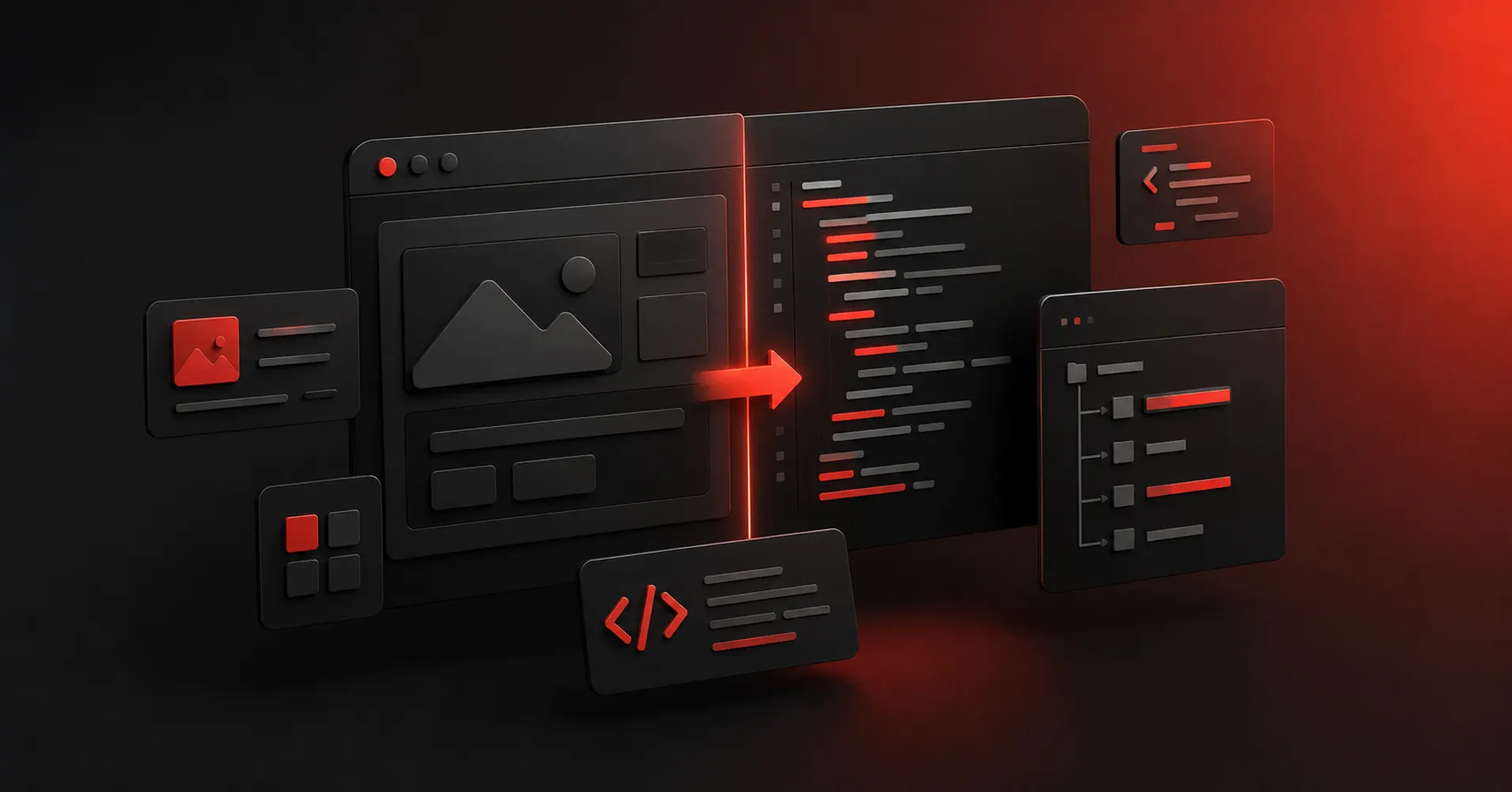
Design-to-code tools promise to remove handoff. In practice, they remove different parts of it. Some export a design. Some understand your repository. Others skip the handoff entirely by turning the design into a working web experience. That difference matters more than the word ‘AI’ on the homepage.
Key Takeaways
- Anima is the strongest pick for converting Figma designs and live pages into editable front-end code.
- Locofy is the strongest pick for front-end code generation from Figma or Penpot with framework choice.
- Builder.io Fusion is the strongest pick for AI-assisted design-to-code work grounded in an existing repository and design system.
- Figma Make is the strongest pick for turning design context into functional prototypes and web experiences.
- UXPin is the strongest pick for code-aware prototyping and design-system work.
There Are Three Different Design-to-Code Workflows
Some tools translate a finished design into code. Some generate code while you design. Others understand an existing repository and try to use its real components. Those workflows have different risks. Exporters can produce cleanup. Code-backed builders can blur design and engineering. Repository-aware tools need more setup but can preserve more system context.
What Good Generated Code Should Preserve
- Responsive structure
- Component quality
- Design-system reuse
- Code readability
- Repository fit
- How much developer cleanup remains
Quick Comparison
| Tool | Best For | Biggest Strength | Watch Out For |
|---|---|---|---|
| Anima | Converting figma designs and live pages into editable front-end code | The value is acceleration rather than magic. | Generated code still needs engineering judgment. |
| Locofy | Front-end code generation from figma or penpot with framework choice | It is a practical fit for teams that want to start from an approved design rather than from a text prompt. | The closer the design is to production structure, the better the result. |
| Builder.io Fusion | Ai-assisted design-to-code work grounded in an existing repository and design system | For established engineering teams, this is a meaningful distinction. | The setup pays off most when a team already has a real codebase, reusable components, and engineering standards. |
| Figma Make | Turning design context into functional prototypes and web experiences | The strongest reason to choose it is continuity. | It makes the most sense inside a Figma-heavy workflow. |
| UXPin | Code-aware prototyping and design-system work | For organizations with an established component library, that can collapse the gap between what designers prototype and what engineers eventually build. | It is a more specialized choice than Figma. |
| Framer | Website design that can move directly into a responsive published site | The unusual advantage is that the design does not have to die at handoff. | It is website-centric. |
| v0 | Prompt-to-frontend and full-stack web work inside the vercel ecosystem | Developers and technical product teams benefit from the proximity to modern React and Vercel workflows. | Non-technical users can get impressive first results, but production applications still need engineering decisions around architecture, data, testing, security, and maintainability. |
1. Anima: Best for Fast Figma-to-Code Export
Product: Anima
Anima is useful when the team already has a design and wants code rather than another prototype. It can turn Figma frames or live web pages into responsive front-end output and supports common React, HTML, styling, and component-library workflows.
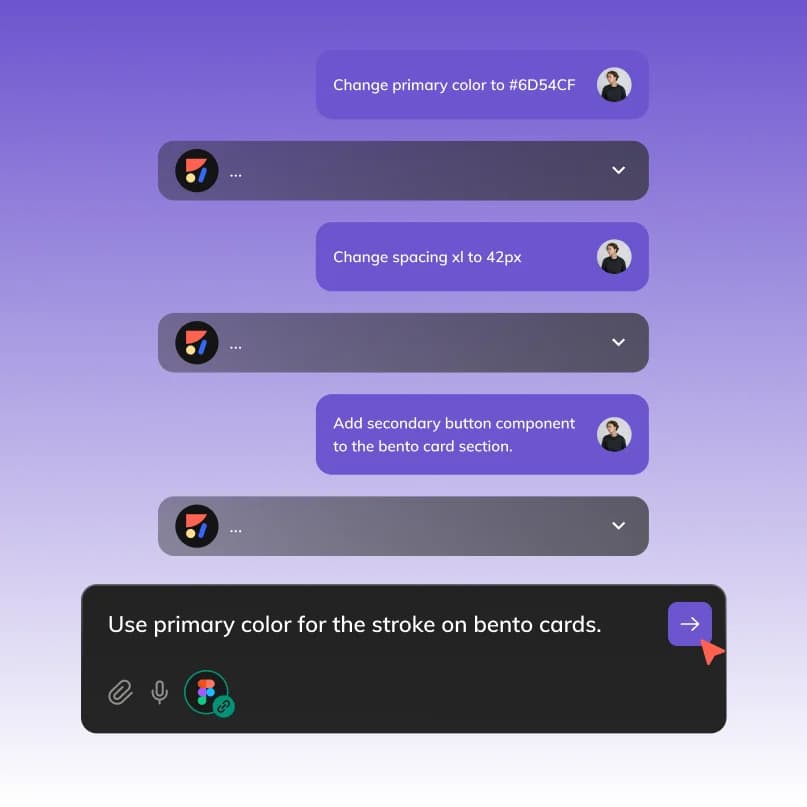
In a design-to-code workflow, the important part is what Anima preserves: layout intent, components, system context, and a path for engineers to keep working.
The value is acceleration rather than magic. A good design with clean structure gives the tool more to work with, and developers can use the generated result as a starting point instead of rebuilding every layer by hand.
Where it fits best
Use Anima when converting Figma designs and live pages into editable front-end code. It is particularly useful when that need is already visible in your current workflow and the team can measure whether the tool actually removes a handoff, shortens iteration, or improves the quality of the artifact.
The tradeoff
Generated code still needs engineering judgment. Complex application architecture, data behavior, accessibility, testing, and long-term maintainability do not disappear because the first pass came from a design-to-code tool.
Current context: Anima says its Figma plugin has reached roughly 1.5 million installs/users across its design-to-code workflow. Source
2. Locofy: Best for Framework Choice
Product: Locofy
Locofy converts design files into front-end code and targets teams that want to preserve their existing design workflow. It supports several web and mobile frameworks, can map design systems, and connects with developer tools such as GitHub, VS Code, and MCP-enabled assistants.

In a design-to-code workflow, the important part is what Locofy preserves: layout intent, components, system context, and a path for engineers to keep working.
It is a practical fit for teams that want to start from an approved design rather than from a text prompt. That makes the design file the source context while AI helps with the repetitive translation into components and layout code.
Where it fits best
Use Locofy when front-end code generation from Figma or Penpot with framework choice. It is particularly useful when that need is already visible in your current workflow and the team can measure whether the tool actually removes a handoff, shortens iteration, or improves the quality of the artifact.
The tradeoff
The closer the design is to production structure, the better the result. Poorly organized frames, ambiguous responsiveness, and inconsistent components still create cleanup work for developers.
Current context: Locofy supports Figma and Penpot inputs and outputs including React, Next.js, Vue, Angular, React Native, Flutter, and HTML/CSS. Source
3. Builder.io Fusion: Best for Existing Codebases
Product: Builder.io Fusion
Builder.io Fusion approaches design-to-code from the codebase side. It can connect a repository and Figma context, use existing components and APIs, provide visual editing, and produce changes that can move through a normal pull-request workflow.
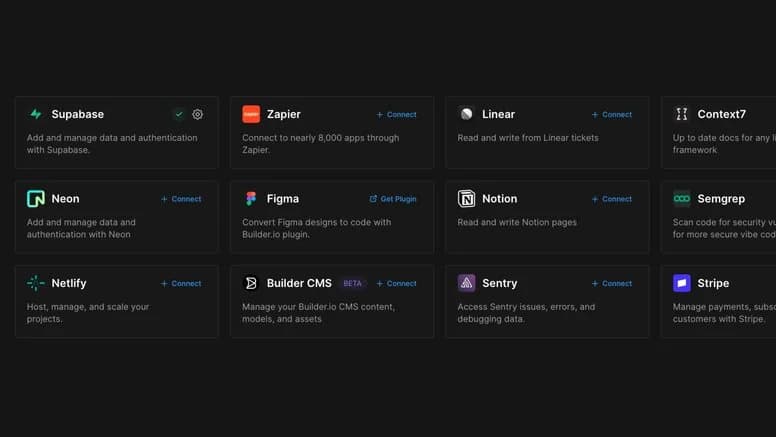
In a design-to-code workflow, the important part is what Builder.io Fusion preserves: layout intent, components, system context, and a path for engineers to keep working.
For established engineering teams, this is a meaningful distinction. The goal is not to generate an isolated demo. It is to work inside the conventions the product already has.
Where it fits best
Use Builder.io Fusion when AI-assisted design-to-code work grounded in an existing repository and design system. It is particularly useful when that need is already visible in your current workflow and the team can measure whether the tool actually removes a handoff, shortens iteration, or improves the quality of the artifact.
The tradeoff
The setup pays off most when a team already has a real codebase, reusable components, and engineering standards. It is heavier than a one-click exporter for a single landing page.
Current context: Builder.io positions Fusion around repository-aware generation, visual editing, existing components, and PR-based workflows across major front-end frameworks. Source
4. Figma Make: Best for Design-Context Prototypes
Product: Figma Make
Figma Make sits unusually close to the rest of the product-design workflow. You can start from a prompt, attach an existing Figma frame or design context, iterate visually, and move toward a code-backed interactive result without abandoning the design file.
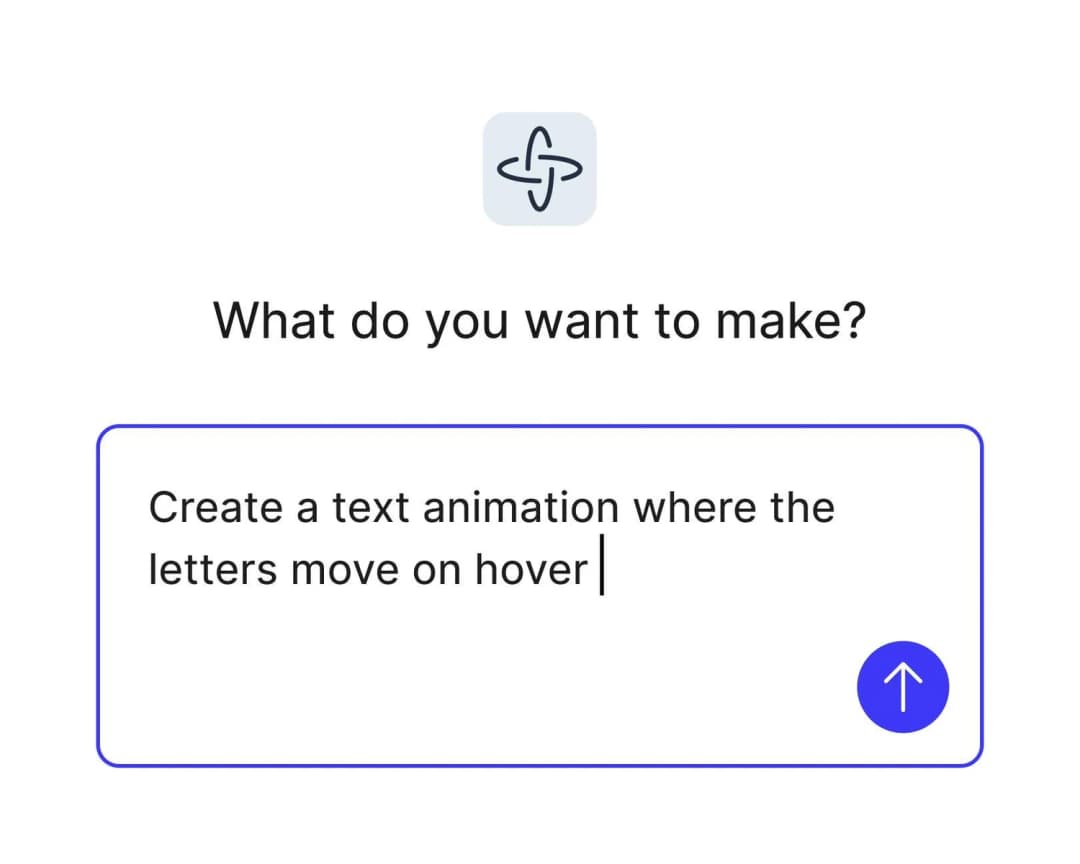
In a design-to-code workflow, the important part is what Figma Make preserves: layout intent, components, system context, and a path for engineers to keep working.
The strongest reason to choose it is continuity. Teams already using Figma can keep components, feedback, design context, and prototyping closer together instead of exporting an early idea into a completely separate AI builder.
Where it fits best
Use Figma Make when turning design context into functional prototypes and web experiences. It is particularly useful when that need is already visible in your current workflow and the team can measure whether the tool actually removes a handoff, shortens iteration, or improves the quality of the artifact.
The tradeoff
It makes the most sense inside a Figma-heavy workflow. If your team wants a standalone AI builder, a code-first IDE experience, or an open-source design stack, other options can feel less opinionated.
Current context: Figma says its 2026 State of the Designer research found 72% of designers now use generative AI, and 91% of designers who increased AI usage say it improves output quality. Source
5. UXPin: Best for Designing With Real Components
Product: UXPin
UXPin sits between traditional design tools and production code. Its prototyping supports logic, variables, states, and interactions, while Merge can let teams design with real React components pulled from a development system.
In a design-to-code workflow, the important part is what UXPin preserves: layout intent, components, system context, and a path for engineers to keep working.
For organizations with an established component library, that can collapse the gap between what designers prototype and what engineers eventually build. The prototype uses the same component logic instead of a visual imitation.
Where it fits best
Use UXPin when code-aware prototyping and design-system work. It is particularly useful when that need is already visible in your current workflow and the team can measure whether the tool actually removes a handoff, shortens iteration, or improves the quality of the artifact.
The tradeoff
It is a more specialized choice than Figma. Teams without a mature design system or code-component workflow may not use enough of its advantage to justify switching.
Current context: UXPin Merge supports code-component workflows through sources such as Storybook and Git, depending on plan and setup. Source
6. Framer: Best When the Website Is the Output
Product: Framer
Framer is strongest when the artifact you are designing is a website and the team wants to shorten the trip from layout to live URL. Responsive design, CMS, animations, interactions, and publishing live in one environment, while AI can help generate starting structures.
In a design-to-code workflow, the important part is what Framer preserves: layout intent, components, system context, and a path for engineers to keep working.
The unusual advantage is that the design does not have to die at handoff. A marketing page or content site can keep evolving inside the same tool until it ships.
Where it fits best
Use Framer when website design that can move directly into a responsive published site. It is particularly useful when that need is already visible in your current workflow and the team can measure whether the tool actually removes a handoff, shortens iteration, or improves the quality of the artifact.
The tradeoff
It is website-centric. For large native applications, research-heavy UX work, or complicated enterprise interaction logic, it is usually better as a specialist rather than the main design platform.
Current context: Framer said in June 2026 that more than 188,000 companies across 200 countries were using the platform, powering more than 4 million published websites. Source
7. v0: Best for Code-First Frontend Generation
Product: v0
v0 is strongest when the output needs to become real web code quickly. It can generate UI and application flows, edit visually through Design Mode, sync with GitHub, and deploy to Vercel, making it more of a build environment than a static mockup generator.
In a design-to-code workflow, the important part is what v0 preserves: layout intent, components, system context, and a path for engineers to keep working.
Developers and technical product teams benefit from the proximity to modern React and Vercel workflows. You can move from idea to component to deployed preview without copying the concept through a traditional handoff chain.
Where it fits best
Use v0 when prompt-to-frontend and full-stack web work inside the Vercel ecosystem. It is particularly useful when that need is already visible in your current workflow and the team can measure whether the tool actually removes a handoff, shortens iteration, or improves the quality of the artifact.
The tradeoff
Non-technical users can get impressive first results, but production applications still need engineering decisions around architecture, data, testing, security, and maintainability.
Current context: v0’s current free plan includes visual Design Mode, GitHub sync, and Vercel deployment; paid plans add more credits and team features. Source
Which One Should You Choose?
Choose Anima if your priority is converting Figma designs and live pages into editable front-end code. Choose Locofy if your priority is front-end code generation from Figma or Penpot with framework choice. Choose Builder.io Fusion if your priority is AI-assisted design-to-code work grounded in an existing repository and design system.
Choose Figma Make if your priority is turning design context into functional prototypes and web experiences. Choose UXPin if your priority is code-aware prototyping and design-system work. Choose Framer if your priority is website design that can move directly into a responsive published site. Choose v0 if your priority is prompt-to-frontend and full-stack web work inside the Vercel ecosystem.
Do not choose from the feature count alone. Pick the tool that removes the next expensive handoff in your workflow. If it only gives you a faster first draft but creates more cleanup later, the speed is mostly cosmetic.
FAQs
What is the best design to code tools for most teams?
For most teams, Anima is the safest starting point because it matches the central job of this list: converting Figma designs and live pages into editable front-end code. The better answer can change quickly when your team has a strong platform, code, or workflow constraint.
Are free design to code tools good enough?
Free plans are usually enough to test the workflow and judge first-result quality. The limits show up later in collaboration, AI credits, private projects, exports, version history, team controls, or production use. Test your real workflow before paying for a year.
Should AI replace the designer in this workflow?
No. AI is most useful for generating options, assembling first passes, translating structure, or automating repetitive edits. Problem framing, accessibility, product judgment, prioritization, and deciding which direction is actually right still need human ownership.
How should I evaluate these tools before buying?
Use one small real project. Give every candidate the same brief, the same existing assets, and the same correction request. Compare the second and third iterations, not just the first output. That exposes workflow friction much faster than a feature checklist.
Final Thoughts
The best design to code tools is the one that makes the next decision cheaper. For this list, Anima is the strongest default, but the specialist options become better as soon as your constraint becomes specific. Match the tool to the output, handoff, and level of fidelity you actually need. That is how you get speed without simply moving the work somewhere else.
If you want expert help carrying a design into production, Omnix Studio offers custom website design and development and custom web app development.