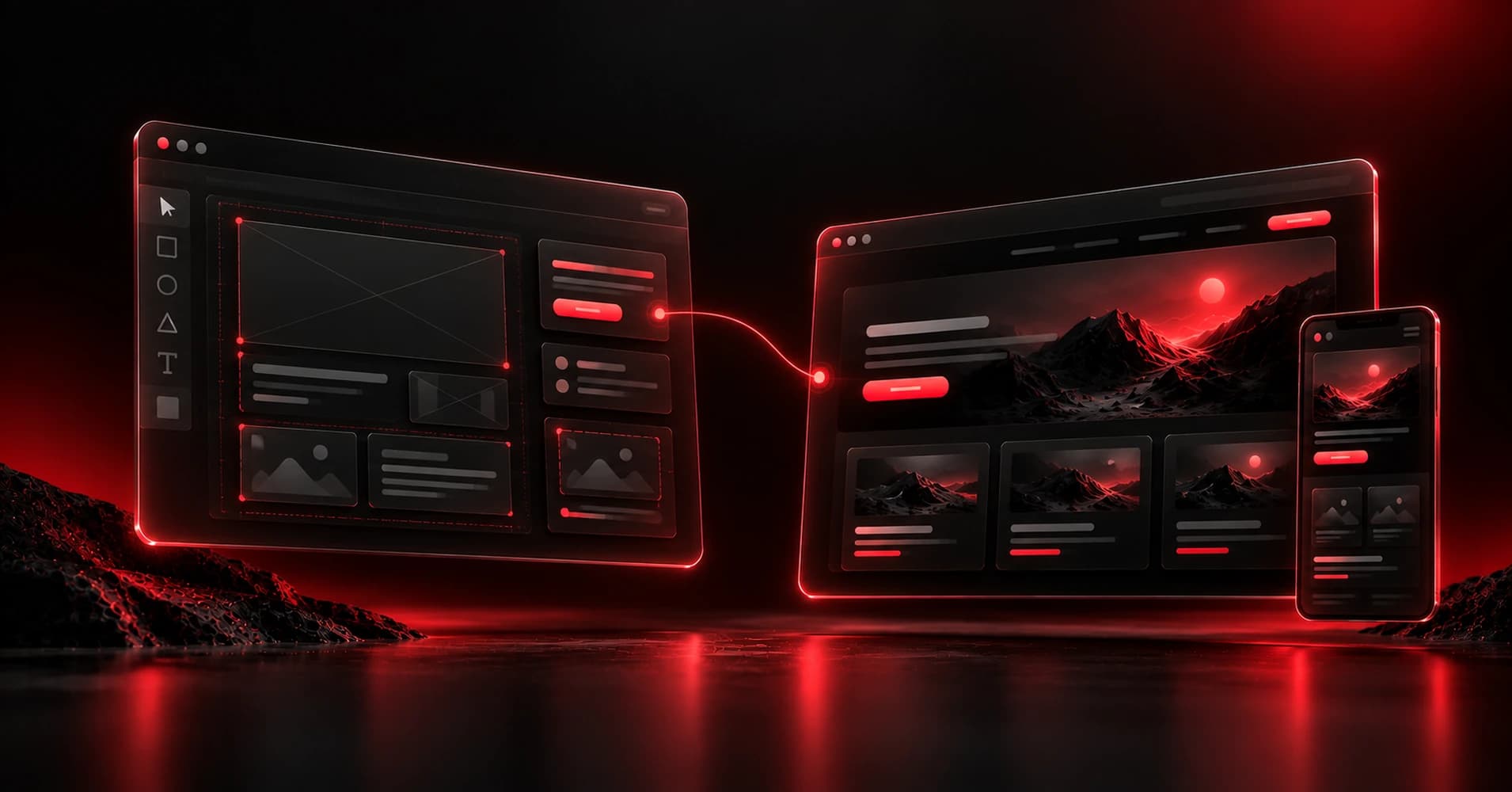
Omnix Studio editorial guide | Research checked October 13, 2026 | Original examples are educational, not screenshots of a live client project.
A Figma file can look finished long before the website is ready. The hero is aligned, the buttons match the brand, and every card sits perfectly inside a 1440-pixel frame. Then someone opens the page on a narrow phone, changes the headline, or adds a sixth team member. The design breaks. Worse, nobody knows who should fix it.
That is why converting Figma to WordPress is not a matter of exporting a screenshot or copying CSS from an inspector. A successful conversion preserves the design intent while creating a site that is responsive, accessible, fast enough for real users, and genuinely editable by the people who will maintain it.
This guide walks through a practical Figma → design tokens → Gutenberg blocks and patterns → responsive testing → launch process. We’ll use a fictional creative consultancy called Northstar Studio as a running example. The sample screens and code included with the article are original teaching assets; they are not presented as an authenticated Figma file or a live WordPress deployment.
Key takeaways
- Choose the build path before exporting assets. A small marketing site may need only existing core blocks and reusable patterns; complex content models can justify a custom block or plugin.
- Treat Figma’s layout measurements as design information, not production CSS. The webpage needs flexible containers, content growth, keyboard access, and real breakpoints.
- Translate repeated visual decisions into
theme.json. Fonts, colors, spacing, and layout widths should come from one system, not dozens of unrelated per-block overrides. - Keep content separate from presentation. Editors should be able to change headlines, images, cards, and CTAs without asking a developer to adjust a hard-coded layout.
- Measure the actual published page. Test at multiple viewport widths, with longer copy, keyboard-only navigation, a reduced-motion preference, and performance tools.
- Do not promise pixel-perfect sameness at every width. Aim for recognizable hierarchy, consistent components, and behavior that survives content changes.
What does converting Figma to WordPress actually mean?
Figma is the design and handoff environment. WordPress is the content management and publishing environment. Between them sits implementation: markup, CSS, theme configuration, blocks, templates, and possibly backend functionality.
The handoff begins with design intent: a 1120-pixel content container, a two-column hero that stacks on smaller screens, repeatable feature cards, an accent button, and a consistent type scale. It ends with a real page that uses semantic HTML, fetches the correct content, follows the site’s editorial rules, and behaves across devices.
A visual approximation can be created quickly. A maintainable site demands more decisions. What happens when a title wraps into three lines? Is the card list a one-off or a reusable content type? Can an editor add a FAQ without changing the code? Which header appears on every page? What happens when JavaScript fails? These questions are part of the conversion, not optional polish.
Which method should you use?
| Build route | Best suited to | Content editing | Main tradeoff |
|---|---|---|---|
| Core Gutenberg blocks and patterns | Service sites, landing pages, blogs | Strong, within the site’s block and pattern setup | Complex interactions may need extensions |
| Custom block theme | Brand-specific multi-page websites | Strong with tailored templates and global styles | More theme development and testing |
| Custom blocks in a plugin | Reusable product UI, interactive elements, structured components | Tailored to the block controls | Requires engineering maintenance |
| Established builder workflow | Teams already invested in a builder | Depends on builder and site conventions | Extra dependencies and lock-in considerations |
Our default for a new content-led business website: use WordPress’s block editor and a well-planned block theme. Reuse core blocks wherever they produce the intended layout. Introduce custom blocks only where there is a genuine functional or editorial need. A custom block is not automatically more professional than a well-composed Group, Columns, Query Loop, or Button block.
WordPress’s Theme Handbook documents theme.json, block theme templates, template parts, and patterns. Its official @wordpress/create-block tool can scaffold a plugin-based block when core blocks cannot meet the requirement. Those are two different tasks: theme styling versus custom block functionality. [1][2][3]
Step 1. Audit the Figma file before writing code
Start with a file inventory, not a development estimate. Identify page types, component states, responsive views, and expected content sources.
Check the pages. List the homepage, service detail pages, articles, case studies, contact flow, and any reusable landing pages. Note whether the design is a complete system or only a few showcase screens.
Check components and variants. A button may have default, hover, focus, disabled, loading, and icon variants. A navigation header may include desktop, collapsed mobile, and dropdown states. A single attractive frame does not establish those behaviors.
Check content. Replace placeholder text with realistic copy. Ask which modules are editable, whether the client controls ordering, and whether cards come from posts or a curated list. Content length often reveals layout weaknesses before development starts.
Check breakpoints. Request desktop and narrow-mobile designs and ask the designer how elements should behave between them. A 1440-pixel screenshot plus a 390-pixel mockup is not enough to describe the transition; determine which layout constraints are intentional.
Check access. Figma’s inspection capabilities depend on permissions and plan or seat type. Dev Mode can expose object measurements, properties, variables, and exports, but not everyone sees the same developer controls. Inspect in Design Mode when required, and never assume a paid Dev Mode seat exists. [4]
A compact handoff sheet should contain component name, Figma location, size/spacing rules, mobile behavior, content ownership, WordPress target, states, and outstanding decisions. This becomes the contract between design and development.
Step 2. Extract the design system, not a pile of CSS snippets
Copying every absolute coordinate from a Figma frame is the quickest way to build a fragile webpage. First identify the repeated decisions behind the screen:
- Color: background, text, muted text, surface, border, accent, and interactive states.
- Typography: font family, weights, line heights, responsive heading scale, and comfortable paragraph width.
- Spacing: a small, repeatable series of gaps and section padding values.
- Layout: content width, wide width, card grid behavior, and when columns stack.
- Components: header, feature card, button, testimonial, FAQ, footer.
- Media: original logo and image assets, meaningful focal points, and alt text decisions.
Figma Dev Mode provides inspection tools for dimensions, styles, variable modes, and exports. Its generated snippets help explain a component, but they do not determine the best WordPress block structure or account for content that changes. [4][5]
For Northstar Studio, suppose the hypothetical Figma design uses a near-black page background, a warm off-white foreground, a coral-red accent, and a maximum content width of 1120 pixels. We convert those repeated decisions into named tokens. The chosen values are illustrative, not extracted from Omnix Studio’s live brand assets or an actual Figma source.
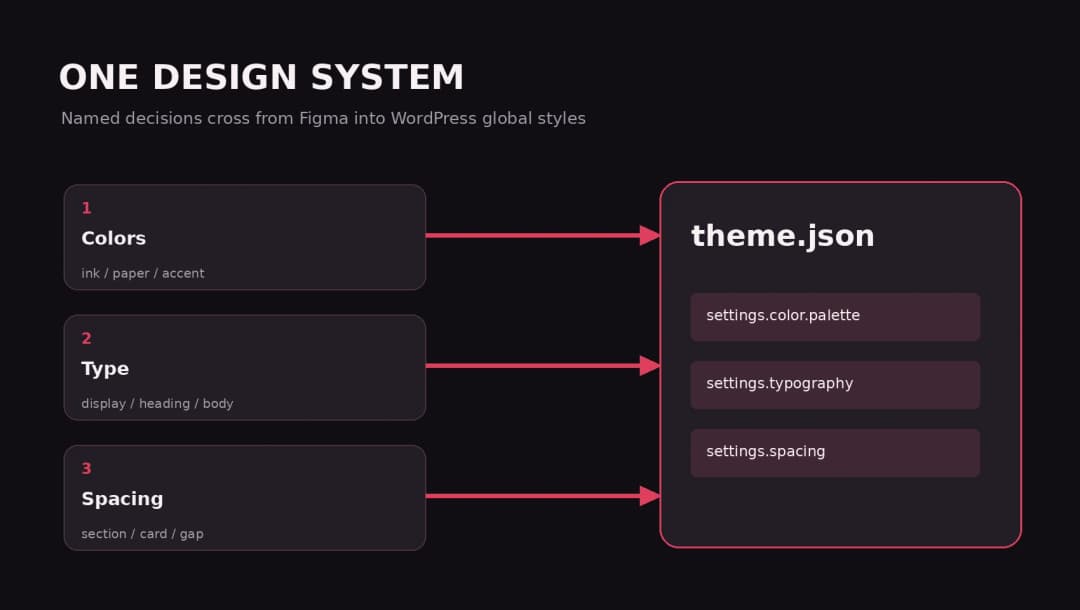
Example: a minimal theme.json foundation
The following simplified configuration shows the shape of a block theme’s global settings. Use the actual validated design tokens from your project, not these demo colors. WordPress’s living theme.json reference describes version 3 and layout, typography, and color settings. [1]
{
  "$schema": "https://schemas.wp.org/trunk/theme.json",
  "version": 3,
  "settings": {
    "layout": { "contentSize": "720px", "wideSize": "1120px" },
    "color": {
      "palette": [
        { "slug": "ink", "name": "Ink", "color": "#141319" },
        { "slug": "paper", "name": "Paper", "color": "#F7F4F3" },
        { "slug": "accent", "name": "Accent", "color": "#DE405B" }
      ]
    },
    "typography": {
      "fluid": true,
      "fontSizes": [
        { "slug": "body", "name": "Body", "size": "1.125rem" },
        { "slug": "display", "name": "Display", "size": "clamp(2.6rem, 6vw, 5rem)" }
      ]
    }
  },
  "styles": {
    "color": { "background": "var:preset|color|paper", "text": "var:preset|color|ink" }
  }
}
WordPress can expose theme-defined color and font choices in the Site Editor. Global settings make recurring changes safer than scattered custom CSS. The Theme Handbook also documents how spacing sizes and fluid typography are configured through theme.json. [6][7]
Step 3. Convert page sections into WordPress blocks and patterns
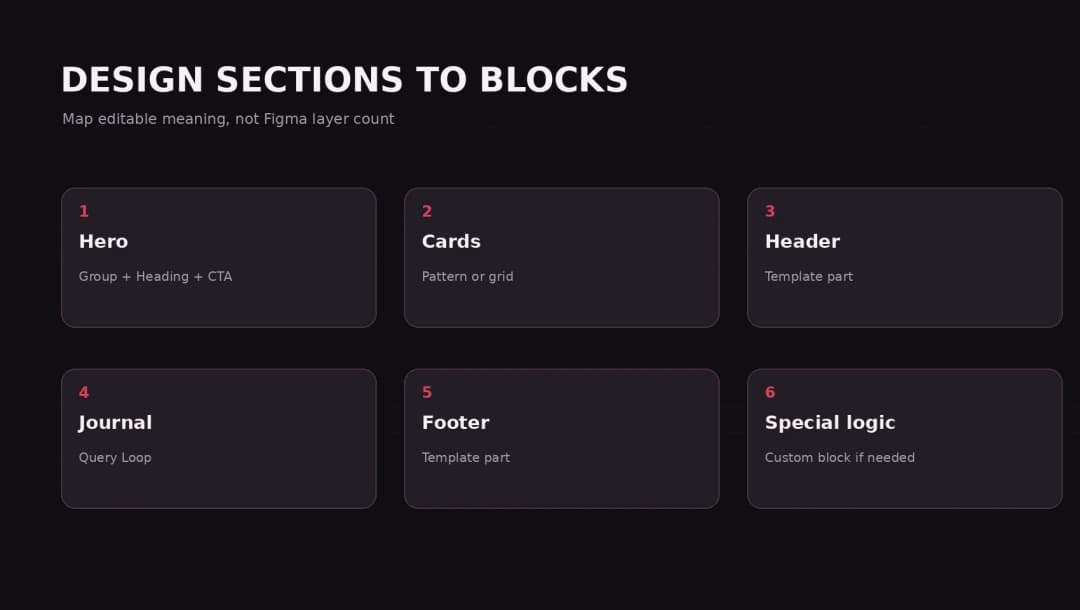
Map the screen by meaning and editability, not by arbitrary Figma layer count. A useful map for our fictional service homepage looks like this:
| Figma section | WordPress structure | Editor action |
|---|---|---|
| Global navigation | Header template part | Update shared navigation once |
| Hero headline and CTA | Group + Heading + Paragraph + Buttons + Image | Rewrite copy or swap photo |
| Service cards | Group with Columns/Grid or curated cards | Add or update cards |
| Testimonials | Pattern or a structured content solution | Change approved testimonials |
| Journal preview | Query Loop, when posts are the source | Publish posts as usual |
| Global footer | Footer template part | Update shared footer once |
WordPress stores block-theme template parts in /parts, such as header.html and footer.html, and reusable patterns can provide editors with prebuilt section layouts. The official guidance treats patterns as structured groups of blocks that can be inserted and customized. [2][3]
Avoid this common mistake: shipping one giant Custom HTML block for the entire homepage. It can look accurate on launch day, but it defeats much of the editing benefit your client expected from WordPress. Use Custom HTML or a custom block for a genuinely unique feature, not as a shortcut around content architecture.
When a custom block makes sense
Build a custom block when editors need controlled inputs and the component has specific logic or repeatable behavior that core blocks cannot express well. Examples include a pricing comparison with validated options, a synchronized product selector, or a custom interactive calculator.
WordPress officially supports scaffolding blocks with @wordpress/create-block. It generates the source and build tooling for a plugin-based block. WordPress recommends plugin ownership for many custom blocks so functionality can survive a theme change. [8]
That does not mean every design token or card requires JavaScript. Before adding code, check whether core blocks, block supports, patterns, or theme styles already solve the problem.
Step 4. Build the desktop and mobile layout together
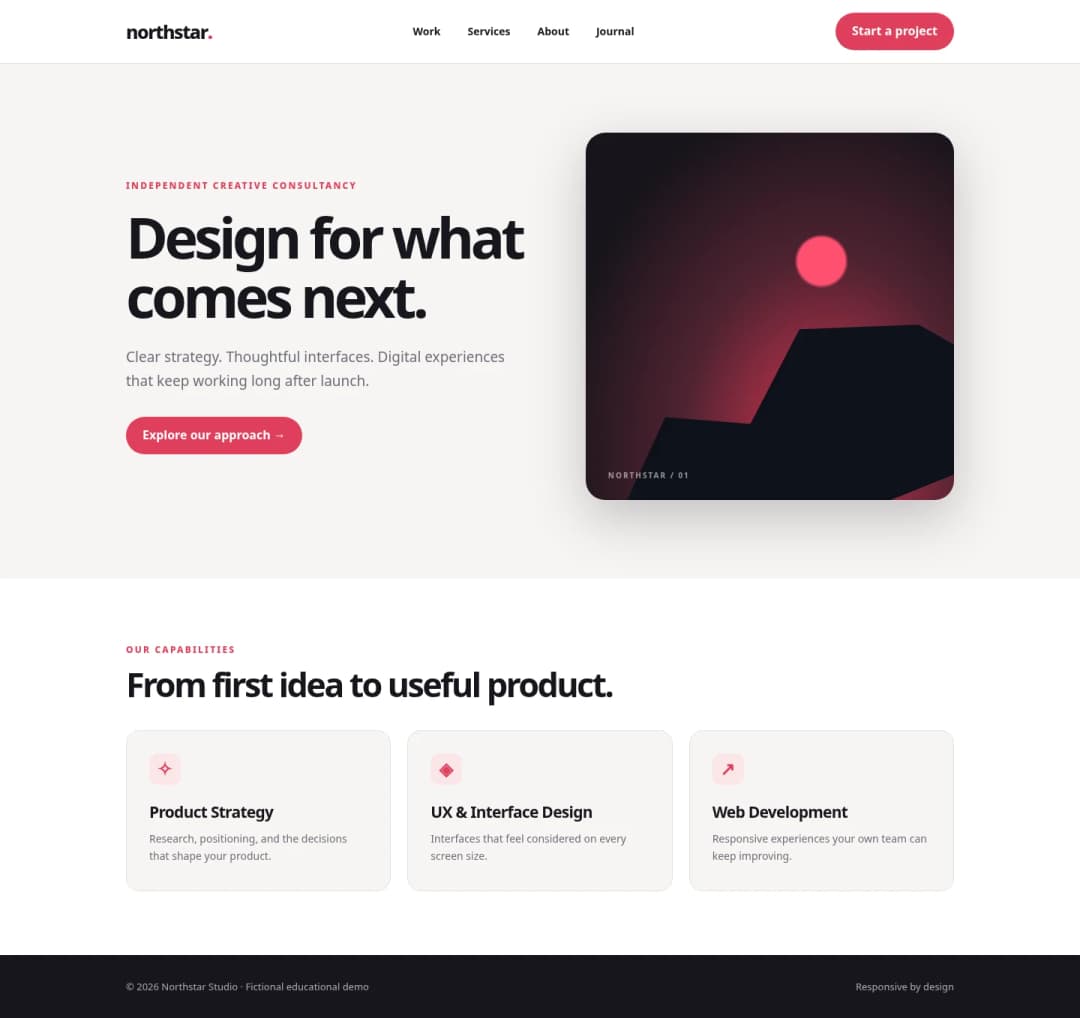
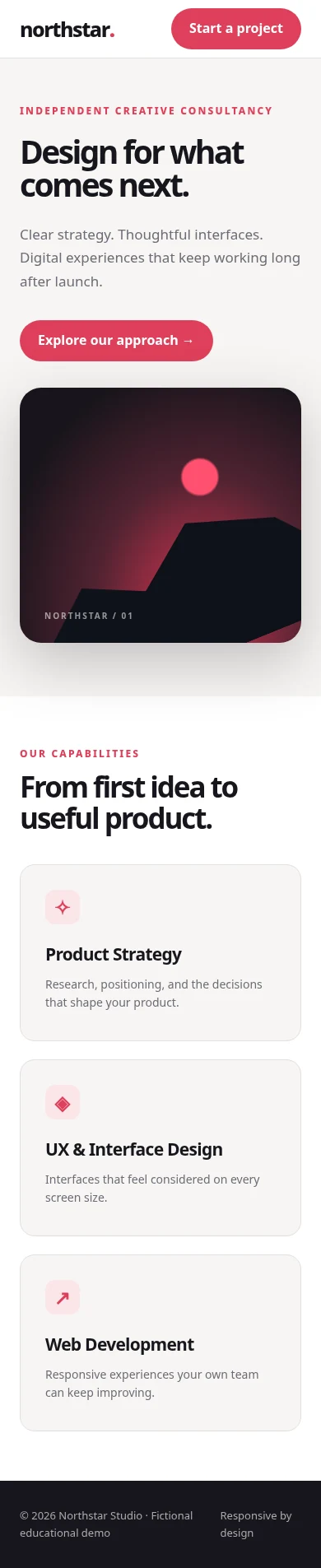
Use fluid, constraint-based CSS. The original Northstar example in this package includes a responsive HTML rendering with screenshots captured in both desktop and mobile browser viewports. It is a coded reference for teaching the layout, not evidence that the WordPress version has already been deployed.
The example has a two-column hero at desktop widths. On a smaller screen it stacks to one column, increases tap comfort, and keeps the CTA visible without horizontal scrolling.
.northstar-hero {
  display: grid;
  grid-template-columns: minmax(0, 1.1fr) minmax(0, 0.9fr);
  align-items: center;
  gap: clamp(1.5rem, 4vw, 4rem);
}
.northstar-hero h1 {
  font-size: clamp(2.4rem, 5vw, 4.8rem);
  line-height: 1.05;
}
@media (max-width: 48rem) {
  .northstar-hero { grid-template-columns: 1fr; }
}
These rules are intentionally small. WordPress core blocks may emit the required layout rules without your adding custom CSS, especially when using Columns, Group, and the theme layout presets. Add targeted CSS only where the visual system needs it.
Do not optimize only for two mockup sizes. Test 320, 375, 768, 1024, and wider desktop widths, plus a longer language string or a two-line CTA. Put another three cards into a grid. Reflow should remain natural.
Step 5. Export images and icons without shipping an unnecessarily heavy page
Export only assets that cannot be recreated properly with semantic HTML, CSS, or existing WordPress blocks. Logos and appropriate icons may be SVG; photographs are better handled as responsive raster images. Respect the rights and provenance of every image exported from the design file.
Prepare crop choices for desktop and mobile, not just a huge image squeezed down by CSS. A meaningful subject might need a different focal point when a two-column layout becomes a vertical stack. Name the files descriptively and write alt text based on the image’s function rather than repeating the headline.
WordPress can generate responsive image variants for media uploaded to the library; the theme still needs appropriate image dimensions, layout constraints, and loading priorities. Avoid lazy-loading the largest above-the-fold image just because it is an image. Treat large decorative media as a budget item, not proof of better design.
Step 6. Make the page genuinely editable
Before calling the design conversion finished, ask a non-developer to perform five tasks in the editor: change the hero heading, replace the primary image, add a service card, reorder a testimonial, and edit a button URL. If any task requires a code change, decide whether that restriction is intentional.
For repeating dynamic content, separate the layout from the records it displays. A journal section can use Query Loop. More structured content may need registered custom post types, post meta, or a carefully chosen field management solution. Evaluate your editorial workflow and migration constraints rather than assuming every section should be a custom post type.
Do not hard-code real customer testimonials, legal disclaimers, or pricing into an opaque template if editors must manage them. At the same time, lock down critical patterns when unrestricted editing would break legal or brand requirements. Reusability should serve the editors, not just the developers.
Step 7. Match accessibility, SEO, and performance requirements
A page that resembles the mockup can still be difficult to use. Validate these qualities during the build, not as a last-minute checklist.
Accessibility: correct heading levels, proper link and button semantics, visible focus indicators, meaningful form labels, keyboard-operable menus, adequate contrast, and usable targets. The W3C’s WCAG 2.2 criteria are a sound reference for review. Decorative screenshots do not need verbose alt text, but informative diagrams do. [9]
SEO: preserve the intended page purpose and readable copy, use real headings rather than text baked into images, keep important internal links crawlable, and retain the correct page URL when redesigning an existing site. The site owner must verify canonical settings, redirects, metadata, and indexing on the deployed page. Do not claim that a specific framework or editor guarantees rankings.
Performance: audit the real published page with field data when available. Google Search Central recommends Core Web Vitals and a broadly good page experience, while explicitly warning that a perfect score does not guarantee top rankings. [10] Check oversized hero images, needless fonts, plugin duplication, and scripts added only for effects visible in a Figma prototype.
Step 8. Test against the design without chasing impossible pixel parity
Review the implemented page next to the design at agreed viewport widths. Record issues as actionable tickets: component, breakpoint, observed behavior, expected behavior, screenshot, severity, and owner.
There is an important difference between a visual deviation and a functional defect. A headline wrapping differently at 900 pixels may be acceptable if the hierarchy remains clear. A mobile navigation button that cannot be reached by keyboard is a defect even if it looks identical to the Figma frame.
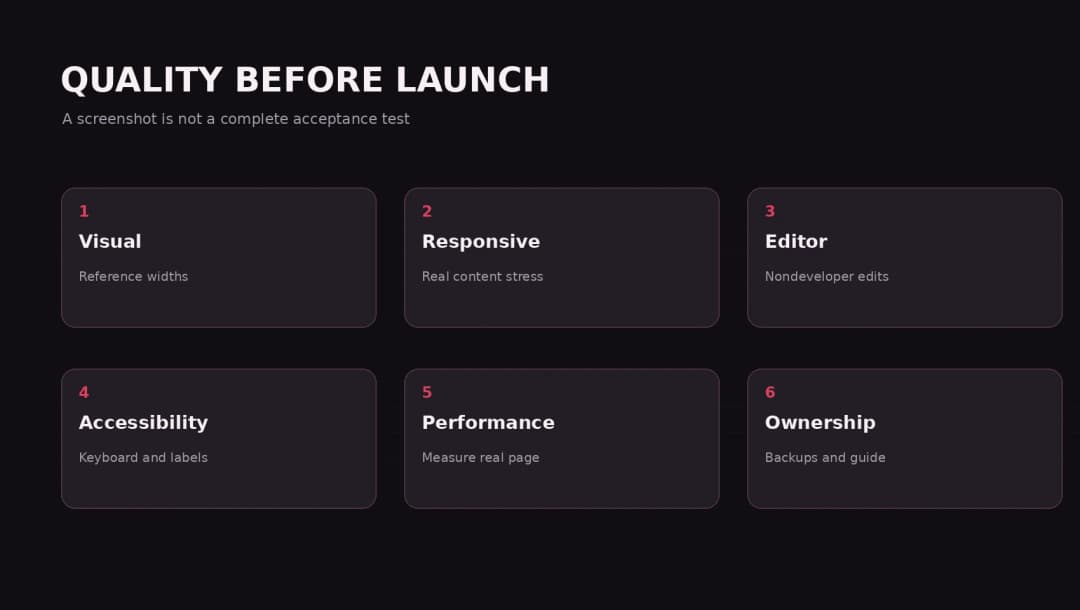
A sensible quality-assurance sequence is: static visual review, real-content stress test, keyboard and screen reader checks, mobile device test, slow-network simulation, forms/integrations verification, then cross-browser regression. Keep before/after evidence and rerun key flows when changing shared components.
Step 9. Handle launch and handoff like a product release
A business website is not complete when the front-end preview looks good. Before launch, confirm who owns hosting, domain, backups, user roles, analytics, forms, privacy notices, redirects, cookie choices where relevant, and updates.
For an existing website, preserve high-value URLs and content intent when possible. If URLs must change, build and test one-to-one redirects rather than pushing everything to the homepage. Update navigation, internal links, sitemaps, and canonical tags as part of a coordinated migration. Use staging carefully so staging pages do not become public search results.
Leave the client with a simple content manual: where to edit each page section, what should not be changed, how to crop images, and when to request developer support. Design-to-WordPress handoff succeeds when the client can work confidently after the agency steps away.
Common Figma-to-WordPress mistakes
- Exporting the entire page as an image. The result lacks accessible, editable HTML content and behaves poorly as pages evolve.
- Copying fixed widths from one frame. A layout that works at 1440 pixels can overflow on smaller devices or with longer content.
- Installing too many plugins before defining the content model. Plugin choice should follow a requirement, not drive the requirements.
- Ignoring theme-wide tokens. Per-section overrides make changes slow and inconsistent.
- Using screenshot-only approvals. Functionality, keyboard use, and editor workflows need separate review.
- Treating AI-generated markup as production-ready. Inspect semantics, permissions, maintainability, and dependencies, then test.
- Skipping content migration. Existing URLs, metadata, and internal links can matter as much as the new layout.
- Forgetting ongoing ownership. A beautiful page without an editing guide, maintenance plan, or backup process is an unfinished delivery.
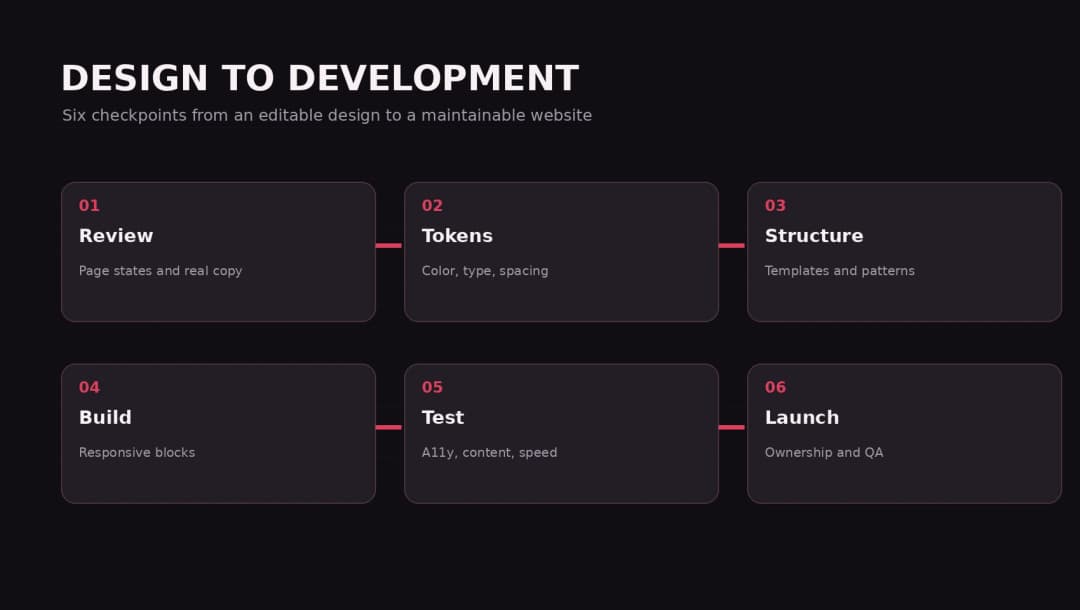
A practical project plan
| Phase | Main output | Approval gate |
|---|---|---|
| 1. Discovery | Site map, content model, design inventory | All page states and requirements known |
| 2. Tokens | Fonts, colors, spacing, widths | Design system signed off |
| 3. Architecture | Theme/pattern/block mapping | Editor and developer workflows approved |
| 4. Build | Working responsive pages | Realistic content and interactions implemented |
| 5. QA | Responsive, accessibility, content, performance checks | Critical defects fixed |
| 6. Launch | Redirects, analytics, publishing, handoff | Owner accepts preview and rollback plan |
This sequence is more useful than a made-up promise that every Figma screen converts in a few minutes. A landing page with three sections is a different project from a 60-page editorial site with multilingual content, integrations, and custom post relationships.
When should you hire a WordPress development agency?
A designer or technically confident founder can build a simple page with existing Gutenberg blocks. Agency help becomes valuable when the site needs reusable design systems, multiple responsive page types, complex content migrations, custom workflows, deep integrations, accessibility work, or a reliable release process.
At Omnix Studio, the useful starting point is a design and content audit: what can stay as core blocks, what requires custom components, and what needs to be validated before launch. If you want help translating Figma layouts into a maintainable WordPress website, see our design and development services. The goal isn’t to make every pixel immovable. It’s to build something that looks right, works well, and your team can manage.
For related reading, explore our design-to-code tools comparison, AI prototyping tools guide, and website design articles. Only add October-series crosslinks once the new posts have real, published URLs.
Frequently asked questions
Can I convert a Figma file directly into WordPress?
You can use plugins or generated HTML to accelerate parts of the process, but a maintainable WordPress implementation still needs page architecture, blocks, content ownership, responsive behavior, and quality assurance. A one-click export should be treated as a starting point, not a production guarantee.
Is Gutenberg enough to reproduce a custom Figma design?
For many marketing and content websites, yes: core blocks, global styles, templates, and patterns can implement sophisticated layouts. Very specific interactions or data-driven components may require custom blocks or other development.
Do I need Elementor to convert Figma to WordPress?
No. Elementor is one possible implementation route, not a prerequisite. WordPress’s Site Editor and block editor support block themes and reusable patterns without requiring a third-party page builder.
Will the WordPress page be pixel-perfect?
It can match the visual system closely at agreed reference sizes, but responsive sites should adapt to changing content, font rendering, devices, and accessibility settings. Judge the result by consistency and real behavior, not frozen coordinate equality.
How long does a Figma-to-WordPress conversion take?
It depends on the page count, design completeness, content model, interactions, existing-site migration, and review process. Estimate individual deliverables and assumptions instead of treating every frame as equal effort.
What can my client edit after launch?
That depends on the chosen block and template architecture. Make editability an acceptance criterion from the start. Ideally, routine text, imagery, CTA links, cards, and articles are editable without changing template code.
Sources and editorial method
This is a documentation-backed implementation guide. It does not claim a controlled benchmark of page builders or an authenticated build in the reader’s own WordPress installation. The Northstar Studio UI and screenshots are original sample assets.
[1] WordPress theme.json reference, updated September 28, 2026: https://developer.wordpress.org/block-editor/reference-guides/theme-json-reference/theme-json-living/
[2] WordPress template parts: https://developer.wordpress.org/themes/templates/template-parts/
[3] WordPress block patterns: https://developer.wordpress.org/block-editor/how-to-guides/curating-the-editor-experience/patterns/
[4] Figma inspection guide: https://help.figma.com/hc/en-us/articles/22012921621015-Guide-to-inspecting
[5] Figma Dev Mode variables: https://help.figma.com/hc/en-us/articles/27882809912471-Variables-in-Dev-Mode
[6] WordPress global styles: https://developer.wordpress.org/themes/global-settings-and-styles/
[7] WordPress fluid typography and spacing: https://developer.wordpress.org/themes/global-settings-and-styles/settings/typography/ and https://developer.wordpress.org/themes/global-settings-and-styles/settings/spacing/
[8] WordPress @wordpress/create-block: https://developer.wordpress.org/block-editor/reference-guides/packages/packages-create-block/
[9] WCAG 2.2 quick reference: https://www.w3.org/WAI/WCAG22/quickref/
[10] Google Search Central page experience: https://developers.google.com/search/docs/appearance/page-experience
Publishing policy: All external links on omnixstudio.co receive rel="nofollow"; paid links, if any, receive rel="sponsored nofollow"; internal omnixstudio.co links remain followable. Open-new-tab links also receive noopener noreferrer. Recheck all live links, capabilities, and screenshots immediately before publishing. Publish as a WordPress draft only until the owner approves.