Omnix Studio editorial guide | Research reviewed October 13, 2026 | Includes an original fictional product audit and downloadable worksheets
A website can look polished, load quickly, and still make the simplest task feel like a puzzle. Maybe visitors cannot tell which plan they need. Maybe the mobile navigation hides an important page. Or maybe a signup form loses everything they typed after an error.
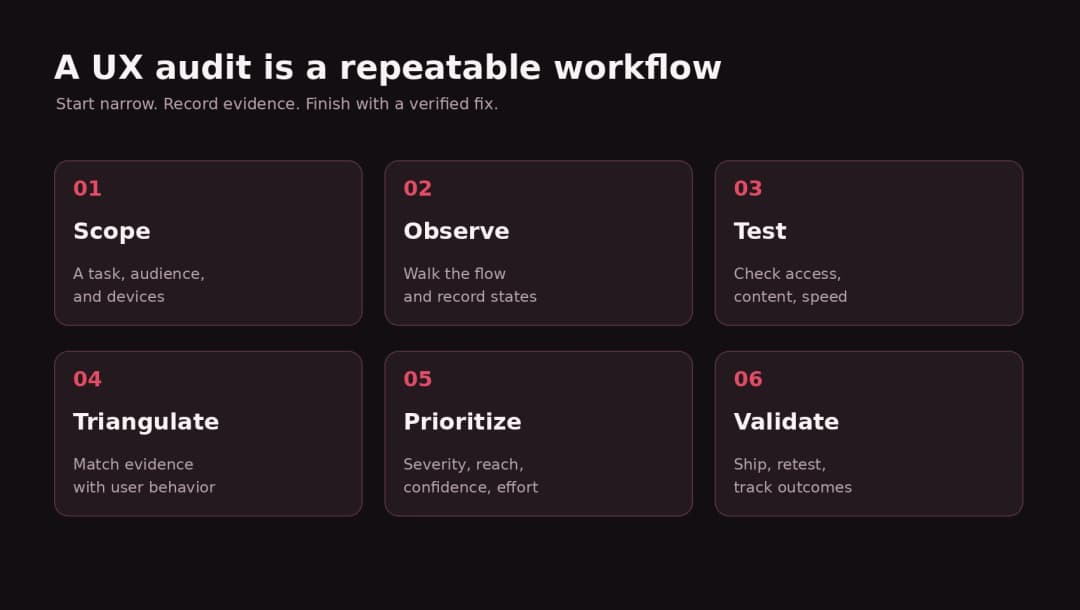
You do not need to redesign the entire website to investigate those problems. You need a focused UX audit: a structured review of what people are trying to do, where the interface gets in their way, and which fixes deserve attention first.
This guide shows how to conduct a UX audit from start to finish. You’ll get a practical checklist, an evidence log, an illustrated example, a severity scale, and a way to turn findings into work your team can actually ship. It combines expert inspection with analytics, accessibility checks, performance data, and targeted usability testing. It does not pretend a checklist alone tells you what real users think.
Key Takeaways
- Audit a journey, not just a homepage. Pick one audience, device, and important task before checking individual screens.
- Record evidence, not opinions. Every finding should include a location, reproduction steps, observed issue, potential user impact, and a proposed next test or fix.
- Use several lenses. Heuristic reviews catch design problems; user tests observe actual behavior; accessibility and performance checks expose different barriers.
- Prioritize by impact, not aesthetics. A broken payment form matters more than inconsistent corner radii.
- Treat severity scores as team judgments. The 0–4 severity rubric here follows Nielsen Norman Group; it is not a statistically validated conversion prediction.
- Finish with owners, dates, and validation. A UX audit without a follow-up plan becomes an expensive document.
What Is a UX Audit?
A UX audit is a structured assessment of how an interface supports the tasks its users want to complete. It looks at usability problems across content, information architecture, visual hierarchy, interaction, accessibility, feedback, and sometimes technical performance. The output is not just a score. It is a prioritized list of problems with evidence and recommendations.
A heuristic evaluation is one method inside an audit: reviewers inspect an interface against established usability principles, such as Nielsen’s ten heuristics. It is helpful but limited by what reviewers notice. Nielsen Norman Group recommends that three to five evaluators review an interface independently when a formal heuristic evaluation is feasible. [1][2]
A usability test is different: you observe representative people attempting realistic tasks. Their behavior may confirm, contradict, or reveal problems missed by reviewers. For small formative studies, rounds with around five participants can be efficient, but that is not a universal sample size, especially for quantitative claims, distinct user segments, or high-stakes products. [3]
An accessibility audit tests a product against relevant accessibility requirements, including the Web Content Accessibility Guidelines (WCAG). A keyboard check or an automated scan can surface issues, but neither alone proves WCAG conformance.
What Should a UX Audit Deliver?
A useful handoff has five parts: a clearly defined scope; an evidence-based findings register; annotated screenshots or recordings; a prioritized action plan; and a validation plan with owners. For a small site, this can be one concise document and a spreadsheet. Larger applications may also need journey maps and separate engineering tickets.
Minimum audit package: the task you tested, the device/browser and account state, the problem, evidence, affected audience, severity, recommended change, owner, and a pass/fail retest criterion. Keep the raw evidence in a private, access-controlled place. Blur names, emails, account numbers, and other personal data before sharing screenshots.
| Issue | Location | Observation | Evidence | Severity | Next action |
|---|---|---|---|---|---|
| UX-01 | Signup form | Vague failure message | Mobile form capture | 3 (provisional) | Specify error and preserve values |
| UX-02 | Pricing | Trial conditions unclear | Plan card screenshot | 2 (provisional) | Clarify adjacent to CTA |
| UX-03 | Navigation | Sticky banner hides action | 320px screenshot | 3–4; verify | Repair overlay and focus |
Step 1. Define the Business Goal and User Journey
Start with a question that matters. “Our website feels dated” is a design preference, not an audit question. “Can a first-time visitor understand our pricing and request a demo without assistance?” is testable.
Write down the audience, task, starting point, completion condition, and constraints. Consider a fictional SaaS product called Northstar Desk, which helps small support teams manage customer tickets. The team sees plenty of trial visits, but relatively few completed signups. That is a starting observation, not proof that the interface causes the drop-off.
For this example, our audit brief is: New visitors on mobile should be able to understand the product, compare plans, and create a trial account. The test begins on the pricing page and ends at a confirmation message or the first successful dashboard load. Include the failed paths too: invalid email, weak password, unavailable connection, back navigation, and keyboard-only form completion.
Set boundaries. Do you have access to a staging environment? Will you handle real customer data? Are payment flows in scope? Which languages, devices, and assistive technologies matter? Without those answers, reviewers often mistake a partial inspection for a whole-product audit.
A simple audit brief
Audience: new, mobile-first small-business owners. Primary action: create a trial account. Pages: pricing, registration, confirmation, initial onboarding. Devices: narrow mobile viewport and desktop. Success condition: user completes signup and understands the next step. Out of scope: support ticket creation after onboarding.
Step 2. Gather Existing Evidence Before You Review Screens
Collect what your organization already knows. Analytics may reveal where people leave a flow. Support tickets may describe unclear labels. Sales calls may show which pricing questions keep coming up. Search queries may show a mismatch between what users expect and what the page explains.
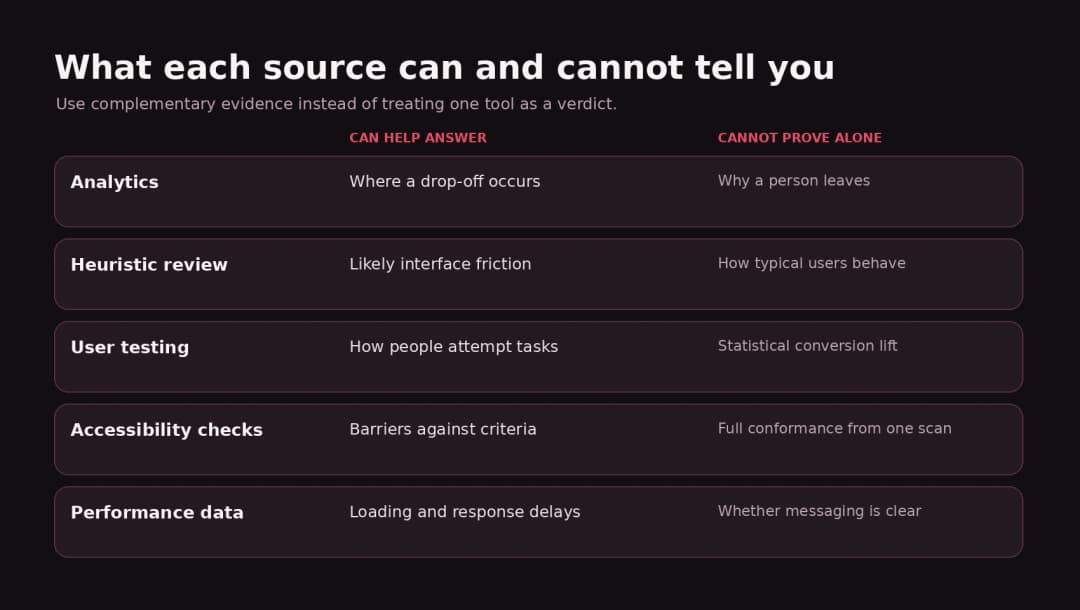
Look for patterns across a meaningful date range, but never treat a drop-off graph as the explanation for why the drop happened. A 40% exit rate at a form is an observation; “visitors dislike our form layout” is a hypothesis. Before changing the layout, check technical errors, attribution, device mix, and whether the event tracking itself is accurate.
Useful inputs include GA4 funnels or product analytics, Search Console landing-page patterns, on-site search logs, support requests, rage-click or session recordings collected with appropriate privacy practices, and a quick review of real customer objections. Export aggregated data when possible. Avoid collecting sensitive form values in recording tools.
Evidence log example: “In the last four weeks, the pricing-to-signup transition is lower on small screens than on desktop.” That gives the team a segment to investigate. It does not, on its own, prove causation.
Step 3. Walk the Journey as a First-Time Visitor
Now open the site in a clean browser session. Do not let your own familiarity with the product fill in missing instructions. Use both a normal and a constrained environment: a narrow viewport, slow network simulation where relevant, keyboard-only navigation, and a new account with no saved state.
Ask five questions on every screen. Where am I? What can I do next? What will happen when I act? How can I recover? Can I complete this without a mouse? These cover navigation, hierarchy, system feedback, error recovery, and accessibility without reducing the audit to a visual polish exercise.
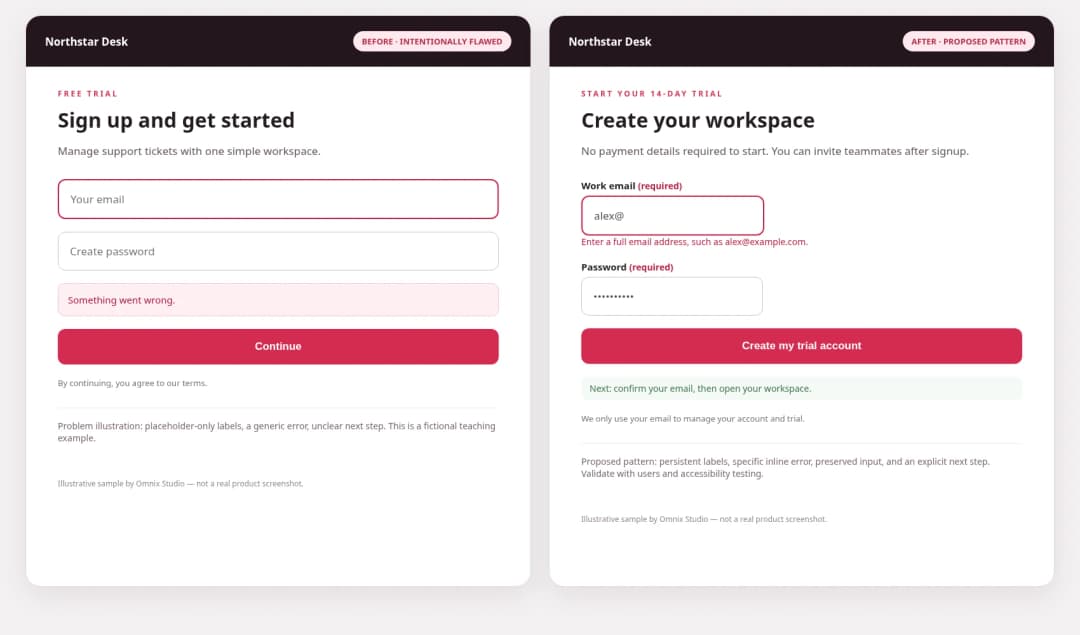
For Northstar Desk, an initial inspection of our deliberately flawed sample page finds a pricing card whose “Start Trial” button is visually prominent, yet it does not explain whether a credit card is required. The signup screen uses unlabeled placeholder-only inputs. After an invalid submission, a generic “Something went wrong” message appears, with no field-level guidance. All of these are designed examples for this tutorial, not findings from a real client.
Capture the screen, the state, your action, and the response. A screenshot with a red circle is rarely enough. “Pricing > Start Trial > submit with malformed email > generic alert shown, entered values retained” is more reproducible. If the system wipes inputs, note that explicitly.
Step 4. Review the Interface Against Ten Usability Heuristics
Nielsen Norman Group’s ten heuristics are broad design principles, not an automatic compliance test. Use them as prompts to look for predictable friction. [1]
- Visibility of system status: after clicking “Create account,” is there a progress indicator, success state, or clear failure message?
- Match between system and real world: does the product use words customers understand, rather than internal engineering names?
- User control and freedom: can people cancel, edit, undo, or go back without losing work?
- Consistency and standards: do similar controls behave similarly across pages and devices?
- Error prevention: does the form help users avoid mistakes before they submit?
- Recognition rather than recall: are options, requirements, and next steps visible when needed?
- Flexibility and efficiency of use: can frequent users complete common tasks without unnecessary steps?
- Aesthetic and minimalist design: does each screen emphasize what the user needs rather than unrelated decoration?
- Help users recognize, diagnose, and recover from errors: can someone understand what failed and what to do next?
- Help and documentation: can the user find concise, relevant instructions at the point of need?
Do not assign a passing grade simply because a screen looks clean. An interface with only one button can still be confusing if the label is vague. In a formal review, have independent evaluators record issues before merging findings, so the first person’s impressions do not bias everyone else. [2]
Step 5. Check Information Architecture and Content Clarity
A UX audit also assesses whether the product makes sense before anyone clicks. Review the page hierarchy, navigation labels, category names, pricing explanation, FAQs, and conversion copy. Ask whether the most common user question can be answered at the moment it arises.
Try a simple five-second comprehension exercise with people who have not seen the page. Ask what the product does and which action they believe is primary. Treat the responses as qualitative feedback, not a universal metric. When the offer is complex, a comprehension interview may be more informative than a timed glance.
For Northstar Desk, the label “Workspace Intelligence” means something to the team but not necessarily to first-time buyers. “Ticket reporting” may be clearer. Before renaming anything, validate the term with actual users, search language, and the product’s functional scope.
A related issue is information scent: can visitors predict where a link will take them? A menu called “Solutions” that leads to unrelated pricing tables is not improved by animation. It is improved by using a predictable label and structure.
Step 6. Audit Forms, Errors, and Conversion Paths
Forms are high-friction moments because they ask visitors to give information before receiving value. Inspect field necessity, visible labels, required/optional status, autocomplete, keyboard operation, validation, success feedback, and how the interface behaves after a failed submission.
Baymard’s research on ecommerce checkout highlights the risk of overwhelming users with fields and inappropriate optional inputs. Its 2025 checkout research also recommends making both required and optional field status explicit, and using specific, actionable error messages. Ecommerce research does not transfer perfectly to every SaaS registration form, but the underlying lesson is useful: unnecessary decisions and vague recovery instructions create avoidable work. [6][7]
Ask the product owner whether a field is required by law, for account security, or merely because a sales team once wanted it. Removing a field can improve clarity, but it can also harm lead quality or downstream operations. Make the tradeoff explicit and test the effect instead of declaring fewer fields always better.
Recommended audit test: submit the form blank; submit an invalid email; paste long text; use browser autofill; navigate with Tab and Shift+Tab; trigger a network failure; and retry without losing information. Check whether instructions remain available after a field gains focus.
For a real checkout, add a purchase path that tests guest options, the display of delivery and fees, payment failure, and returning to an order after a session interruption. Do not interact with real payment cards or customer accounts without permission.
Step 7. Run an Accessibility Pass Using WCAG 2.2
A beautiful interface that cannot be operated by keyboard, read with assistive technology, or understood at usable contrast has a UX problem. WCAG 2.2 provides an established reference, but do not confuse an informal accessibility pass with a full conformance audit. [4]
Start with keyboard access: can the user reach interactive controls, tell which element is focused, operate dropdowns and dialogs, and close overlays? Ensure sticky banners do not completely obscure the focused control. WCAG 2.2 Level AA includes Focus Not Obscured (Minimum). It also includes a 24-by-24 CSS-pixel target size minimum, subject to specific exceptions. This is not the same criterion as the 44-by-44 enhanced target at Level AAA. [4]
For text contrast, WCAG 2.2 AA generally requires at least 4.5:1 for normal text and 3:1 for large text, with defined exceptions. Inspect hover, focus, disabled, error and validation states as appropriate. A brand color that works on a large heading can still fail as small helper text.
Review semantic headings, associated form labels, meaningful image alternatives, error instructions, status announcements, zoom/reflow, and content exposed to screen readers. Automated checkers such as axe or Lighthouse can speed up discovery, but manual keyboard and assistive technology checks are still needed.
Accessible finding example: “The error message is only indicated by a red border, and no text names the invalid email field.” The proposed correction is not simply “make the border darker”; it is to provide a clear text message and a programmatic relationship to the field.
Step 8. Measure Performance Without Treating It as the Whole UX
Technical delays can interrupt otherwise good experiences. On the pages in scope, collect both lab diagnostics and real-user field data when available. Distinguish the two: a Lighthouse run on your own computer is a simulation, not a direct measurement of every visitor’s experience.
Google’s Core Web Vitals guidance recommends a Largest Contentful Paint (LCP) of 2.5 seconds or less, an Interaction to Next Paint (INP) below 200 milliseconds, and a Cumulative Layout Shift (CLS) below 0.1 for a good experience. Evaluate the relevant 75th-percentile field measures rather than quoting one lucky local run. [5]
For Northstar Desk, a slow transition after pressing “Start Trial” might make visitors click twice. But a page that scores highly on performance can still have a confusing registration flow. Google itself cautions that good page-experience metrics do not guarantee search rankings. Performance is one dimension of the audit, not its final verdict. [8]
Record the test URL, date, device, connection context, whether numbers come from a field report or lab run, and the suspected experience consequence. Assign engineering investigation when the metric is poor instead of guessing which plugin or script is responsible.
Step 9. Validate Your Suspicions with Real Users
After the expert review, turn your highest-impact assumptions into tasks for representative users. Avoid questions such as “Is the pricing page clear?” because they invite polite agreement. Instead say: “You need a trial for a team of four. Show me which plan you would choose and start setting it up.” Watch where the person hesitates without coaching them.
Capture whether the user completed the task, whether they needed help, and what you observed. You can ask them to think aloud, but do not turn the session into a product demo. Some people may work differently with assistive technology, slow connections, or low digital confidence; make room for those experiences in recruitment.
Five participants can be enough for an initial qualitative round on a narrow journey, but it cannot establish a reliable conversion lift, represent every segment, or prove accessibility for everyone. More or different participants may be necessary when the product serves diverse groups or the outcome is consequential. [3]
For the fictional example, suppose three of five participants in a hypothetical exercise hesitate at a plan’s included-seat count. That is evidence worth investigating, but it remains an illustrative scenario, not original research conducted by Omnix Studio.
Step 10. Record Findings So a Developer Can Reproduce Them
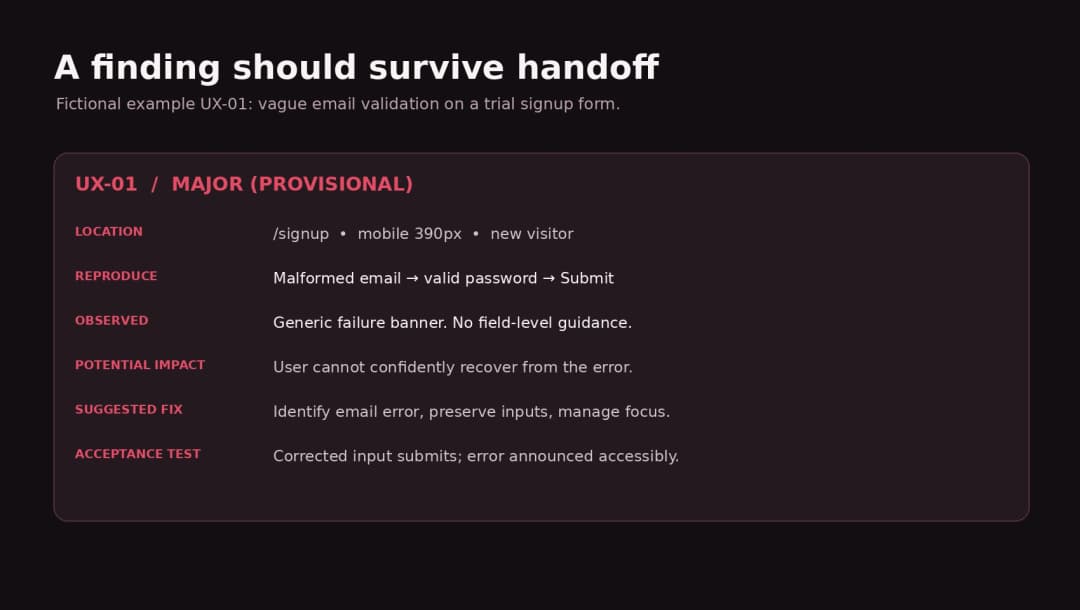
A useful audit log turns observations into actionable tickets. Each finding needs a stable ID, location, exact condition, evidence, user consequence, severity, recommended next action, owner, and acceptance test. Avoid generic findings such as “bad UX” or “improve CTA.”
Here is a worked example, explicitly fictional:
UX-01 — Generic signup error. Location: /signup, mobile 390px, unauthenticated visitor. Steps: enter malformed email, valid password, submit. Observed: generic banner says “Something went wrong”; no field-level instruction. Expected: email field identifies the issue with specific guidance. Potential impact: users cannot confidently fix the input. Proposed severity: 3, major pending validation. Suggested action: show actionable inline text and connect it to the input, preserving entered data. Acceptance: keyboard and screen-reader users can locate the error; correcting the email allows the task to complete.
UX-02 — Unclear trial requirements. Location: pricing cards. Observed: CTA does not disclose whether payment details are required. Potential impact: hesitation and avoidable questions. Proposed severity: 2, minor until user evidence or funnel data suggests greater impact. Suggested action: clarify the trial condition beside the CTA and test comprehension. Acceptance: representative participants can explain what happens after clicking.
UX-03 — Hidden navigation on a narrow screen. Location: pricing page, 320px width. Observed: account link is unavailable when a sticky promotional banner overlaps the menu. Potential impact: task-blocking for affected users. Proposed severity: 3 or 4, depending on whether an accessible alternate path exists. Action: fix stacking and reflow; test focus order and the sticky state.
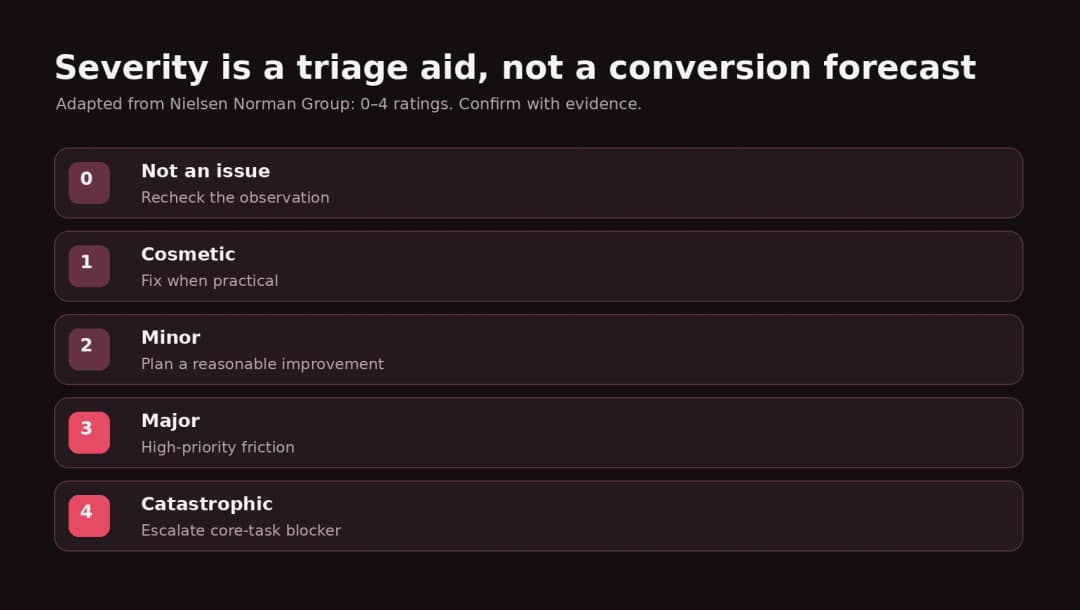
Step 11. Prioritize Issues with a 0–4 Severity Scale
Nielsen’s usability severity scale distinguishes cosmetic, minor, major, and catastrophic issues. It considers how frequently a problem occurs, its impact when encountered, and whether the disruption persists. The labels are useful for triage, but scoring remains a judgment. Two reviewers can reasonably disagree before they compare evidence. [9]
- 0 — Not a usability issue: confirm whether the observation actually describes a problem.
- 1 — Cosmetic: address when there is room after functional work.
- 2 — Minor: frustrating but usually recoverable; schedule with other improvements.
- 3 — Major: serious friction in a significant task; prioritize a fix.
- 4 — Critical/catastrophic: can block core tasks or create serious harm; escalate immediately.
This scale does not replace separate security, privacy, and accessibility risk processes. For example, accidentally exposing one customer’s account data to another user warrants immediate security escalation even if an average user never notices it. Similarly, a keyboard barrier may prevent some people from completing a task and deserve urgent attention even when overall traffic data appears small.
For planning, add reach (how many journeys are affected), confidence (how strong the evidence is), effort (small/medium/large estimate), and a responsible owner. Avoid turning a homemade weighted formula into pseudo-scientific certainty. A simple board arranged into “Fix now / Next sprint / Investigate / Later” is often easier to defend in a stakeholder conversation.
| Rating | Meaning | Suggested next step |
|---|---|---|
| 0 | Not a problem | Confirm the observation |
| 1 | Cosmetic | Low-priority polish |
| 2 | Minor | Recoverable friction |
| 3 | Major | Significant journey obstacle |
| 4 | Catastrophic | Core task blocked; escalate |
Step 12. Convert Audit Findings into a 30-Day Improvement Plan
A report is only useful if fixes can be delivered and checked. Here’s an example timetable for a modest marketing-site or SaaS-flow audit. Adapt it to team capacity and release risk.
Week 1: Triage. Validate major findings, assign owners, resolve obvious blockers, and create baseline measurements. Confirm nothing in the report exposes sensitive user information.
Week 2: Fix core flow problems. Repair broken or opaque form errors, accessibility blockers, misleading navigation, and critical mobile layout issues. Use a staging environment and targeted QA.
Week 3: Improve clarity. Refine plan explanations, button labels, information hierarchy, and onboarding guidance. Consider qualitative follow-up or a properly designed experiment for uncertain copy choices.
Week 4: Retest and report. Repeat the exact journeys under comparable conditions. Document which issues were closed, which remain, and what additional research is required. Revisit analytics only when tracking quality and sample size allow meaningful interpretation.
The deliverable to leadership should be concise: three most consequential problems, evidence, recommended fixes, estimated effort, dependencies, and the success metric for each. The developer gets the detailed register and screenshots; stakeholders get decisions rather than fifty unranked annotations.
UX Audit Checklist You Can Copy
Use this checklist during each task-based audit. Mark items Pass / Issue / Not tested, not simply yes/no; “not tested” prevents false confidence.
Scope and navigation
- Target audience and success task are defined.
- Critical journey is tested from starting screen to completion.
- Navigation labels predict destinations accurately.
- Mobile menus and sticky elements do not hide essential actions.
- Back, cancel, undo, and exit behaviors are understandable.
Content and visual clarity
- Product value and primary next step are understandable.
- Headings and CTA labels use the audience’s language.
- Important pricing, restrictions, and prerequisites are visible.
- Layout gives priority to the current task rather than decoration.
- Error, empty, loading, and success states use helpful copy.
Forms and interaction
- Inputs have persistent, programmatic labels.
- Required and optional information is identifiable.
- Errors explain what needs correction.
- Typed values survive recoverable validation failures.
- Keyboard-only completion and focus order work.
Accessibility and performance
- Keyboard focus is visible and not fully obscured.
- Contrast and target sizing are checked against applicable WCAG requirements.
- Screen-reader names, headings, and status messages are inspected.
- Reflow, zoom, and narrow viewports are checked.
- Relevant Core Web Vitals use stated data sources and test conditions.
Evidence and follow-through
- Every issue has reproduction steps and a screenshot or note.
- Findings distinguish measured facts from hypotheses.
- Severity is assigned with rationale, not just preference.
- Fixes have owners and clear acceptance criteria.
- A comparable retest is scheduled after changes ship.
A copyable CSV register and scoring workbook accompany this article. The checklist is a starting point, not a certificate of accessibility, security, or usability.
What Tools Help with a UX Audit?
The tool should match the question. Analytics (for example, GA4 or product analytics) can show where journeys lose users. Browser developer tools help diagnose responsive layouts and technical behavior. Lighthouse and PageSpeed Insights help with performance diagnostics. axe and other accessibility tools find some classes of detectable issues. Figma, spreadsheets, and task trackers organize screenshots and changes. Usability-testing platforms help recruit or observe participants when your research process allows it.
No single dashboard can tell you whether a sentence makes sense or whether someone trusts a payment flow. Likewise, an AI assistant can help sort notes and propose tests, but invented behavioral evidence is not a UX finding. When software suggests a fix, return to the actual page and validate it.
If you are redesigning the experience after the audit, see our practical guide to website wireframes, which compares tools for shaping and reviewing page structure. For the wider foundations, User Experience Basics explains the relationship between usability, user research, and interface design. Editorial note: verify the exact URLs before publication; do not insert a link to an unpublished October draft.
Common UX Audit Mistakes to Avoid
Auditing everything at once. You end up with inconsistent observations and no finished journey. Start with the most valuable task and expand once the process works.
Calling every issue a conversion problem. A blocked form is real friction, but a claim that fixing it will increase revenue needs evidence. Phrase potential impact as a hypothesis until validated.
Treating an automated score as a verdict. A high Lighthouse score or a passing scanner report does not confirm that navigation, content, or keyboard interaction is usable.
Testing only on desktop. Sticky overlays, touch targets, form keyboards, and layout order often behave differently at narrow widths.
Copying solutions from competitors. A pattern can inspire an experiment without being appropriate for your users or business model.
Shipping a report without ownership. If no one is responsible for a fix, the same issue will appear in the next audit.
Should You Conduct a UX Audit Yourself or Hire a Specialist?
A small team can perform a focused first pass if it has clear tasks, access to a test environment, and the discipline to separate observations from assumptions. It is a good way to catch obvious gaps before investing in a large redesign. For regulated, complex, or accessibility-critical experiences, involve specialists with the relevant expertise and testing facilities.
An independent reviewer can be especially valuable when your team has lived with the interface long enough to stop noticing its strange behavior. They can challenge unclear terminology, examine interactions without product assumptions, and connect design issues to development constraints. Still, the final decisions should draw on user evidence and business priorities, not a consultant’s aesthetic preferences.
At Omnix Studio, our website UI/UX design service covers user research, journey mapping, wireframes, usability testing, and design handoff. If you need help identifying why a critical flow confuses visitors, or translating audit findings into a practical redesign, start with a focused conversation about that flow instead of a vague request for a “modern website.”
Frequently Asked Questions
How long does a UX audit take?
A narrow review of one task may be completed in a short working session, but the total effort rises when you need independent evaluators, multiple devices, accessibility testing, participant recruitment, and analysis. Give a scoped estimate rather than promising a universal time or price.
Is a UX audit the same as a usability test?
No. A UX audit combines multiple methods to assess an experience. A usability test observes participants attempting tasks. The test can validate or challenge issues suggested by an expert review.
What should a UX audit report include?
Scope, methods, task definitions, issue evidence, annotated screenshots, reproducible steps, severity rationale, suggested improvements, owners, and validation requirements. A one-page decision summary is helpful for stakeholders.
Do I need analytics to conduct a UX audit?
You can inspect a journey without analytics, but you will have less evidence about frequency and reach. Label that limitation. Even with analytics, you often need direct observations to understand why something happens.
Can AI perform a UX audit automatically?
AI can help organize screenshots, draft potential checks, and cluster notes. It cannot reliably establish real user motivation from a static screenshot or replace consented usability research, accessibility expertise, and engineering tests.
How often should a website be audited?
Audit critical flows after significant changes, persistent customer complaints, or measurable signs of friction. A lightweight recurring check is useful, while broader reviews should follow product complexity and release cadence.
Final Thoughts
The best UX audit is not the longest one. It is the one that finds a meaningful obstacle, explains how it was observed, gives the team a feasible next action, and checks whether the change helped. Pick one journey, collect evidence, record the barriers, and make sure the work reaches a release. Then repeat.
Sources and Editorial Verification
- Nielsen Norman Group, Ten Usability Heuristics and Heuristic Evaluation Workbook.
- Nielsen Norman Group, How to Conduct a Heuristic Evaluation.
- Nielsen Norman Group, How Many Test Users in a Usability Study?.
- W3C, Web Content Accessibility Guidelines 2.2 and What’s New in 2.2.
- Google Search Central, Core Web Vitals.
- Baymard Institute, Checkout UX 2025: 10 Pitfalls and Best Practices.
- Baymard Institute, Checkout Optimization: Minimize Form Fields.
- Google Search Central, Understanding Page Experience.
- Nielsen Norman Group, Severity Ratings for Usability Problems.
Research transparency: This article is documentation-led. Northstar Desk, its screens, issue IDs, example tickets, and participant scenarios are fictional teaching examples. No client findings, usability sessions, measured conversion improvements, or numerical UX benchmarks were produced for this article.